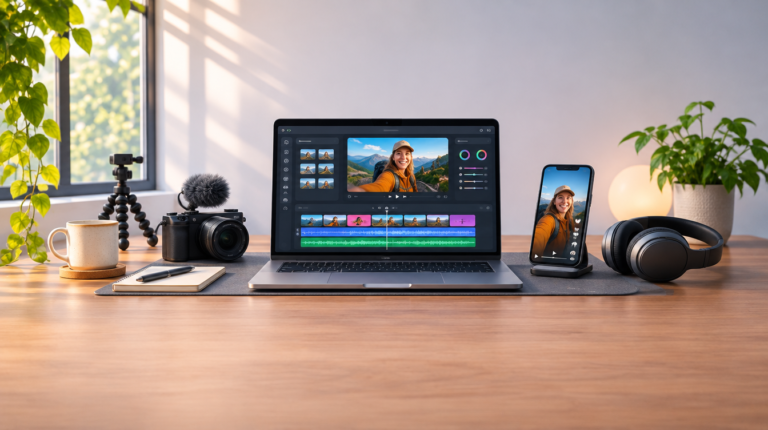


If you’re new to editing, it’s worth thinking about what you’ll be filming before you download any software. A lifestyle blogger who posts weekly vlogs may need a different set of tools than someone making 30-second Instagram Reels.
For this roundup, we looked at how easy it is to learn each editor, what kinds of videos you can make with it, and whether the free version is practical for regular use. We’ve included both desktop and browser-based software, as well as a few options for editing on your phone. Prices were checked in November 2026.
Best video editing software for beginners at a glance
| Tool | Platforms | Free version | Paid from | Learning curve |
|---|---|---|---|---|
| Movavi Video Editor | Windows, macOS | Watermarked exports up to 60 sec | $19.95/mo | Easy |
| CapCut | Windows, macOS, web, mobile | Basic editing tools | $19.99/mo | Easy |
| Filmora | Windows, macOS | Watermarked exports | $69.99/yr | Moderate |
| VEED | Web | Watermarked exports | $25/mo | Easy |
| Clipchamp | Windows, web | Watermark-free 1080p exports | Microsoft 365 from $99.99/yr | Easy |
| iMovie | Mac, iPhone, iPad | Completely free | – | Easy |
| Adobe Express | Web, mobile | Videos up to 30 min | $9.99/mo | Easy |
| OpenShot | Windows, macOS, Linux | Completely free | – | Easy to moderate |
Video editing for beginners: 8 tools to try
1. Movavi Video Editor
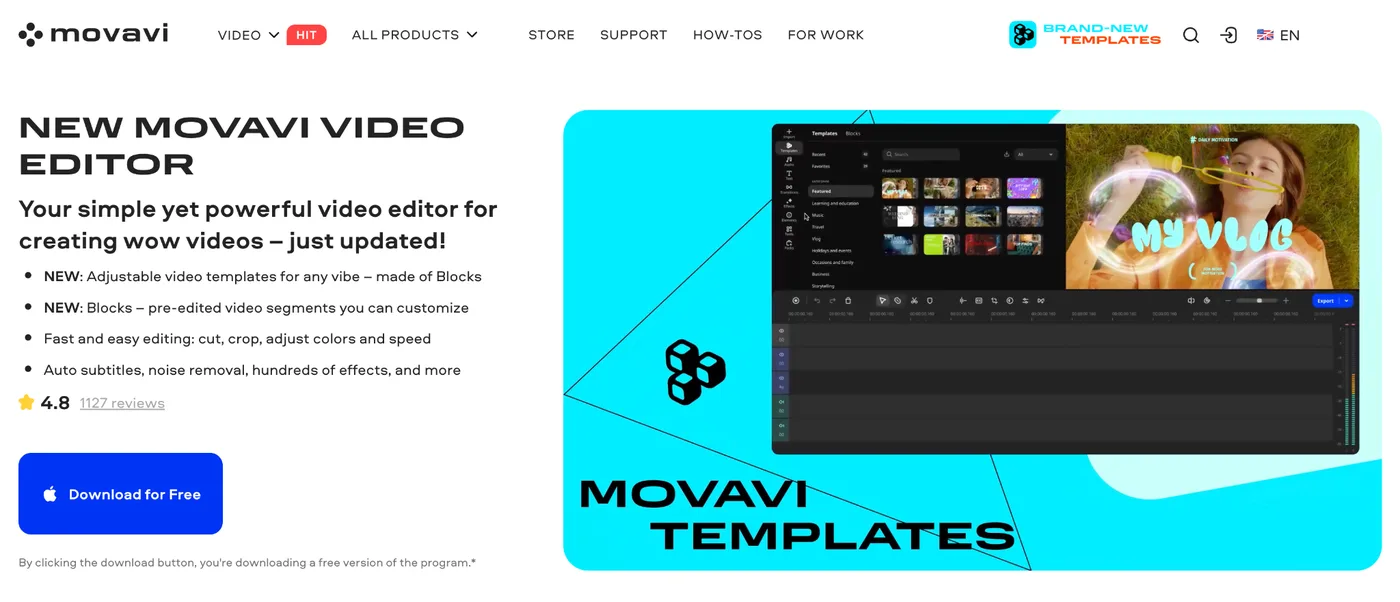
Movavi Video Editor is an intuitive video editor with customizable video templates, one-click AI tools, and hundreds of drag-and-drop effects. Its templates consist of Blocks, which are short, pre-edited video sequences, so your vlog or travel video looks finished with text, music, and transitions already in place. You can take an animated intro from a template, add or remove Blocks, and rearrange them to suit your footage. There’s also a conventional timeline for editing from scratch.
Best for: Beginners editing vlogs, unboxings, family and travel videos.
Price: Free version available (watermark and 60-sec export limit). Full version from $19.95/month.
Pros:
- One-click AI with no credits to count, including silence removal, auto-tracked cropping, and motion tracking
- AI captions in 100+ languages, plus video and audio noise removal
- Hover previews, built-in hints, and drag-and-drop
- Free weekly tutorials in Movavi Ideas
Limitation: Fewer advanced controls than professional editors.
2. CapCut
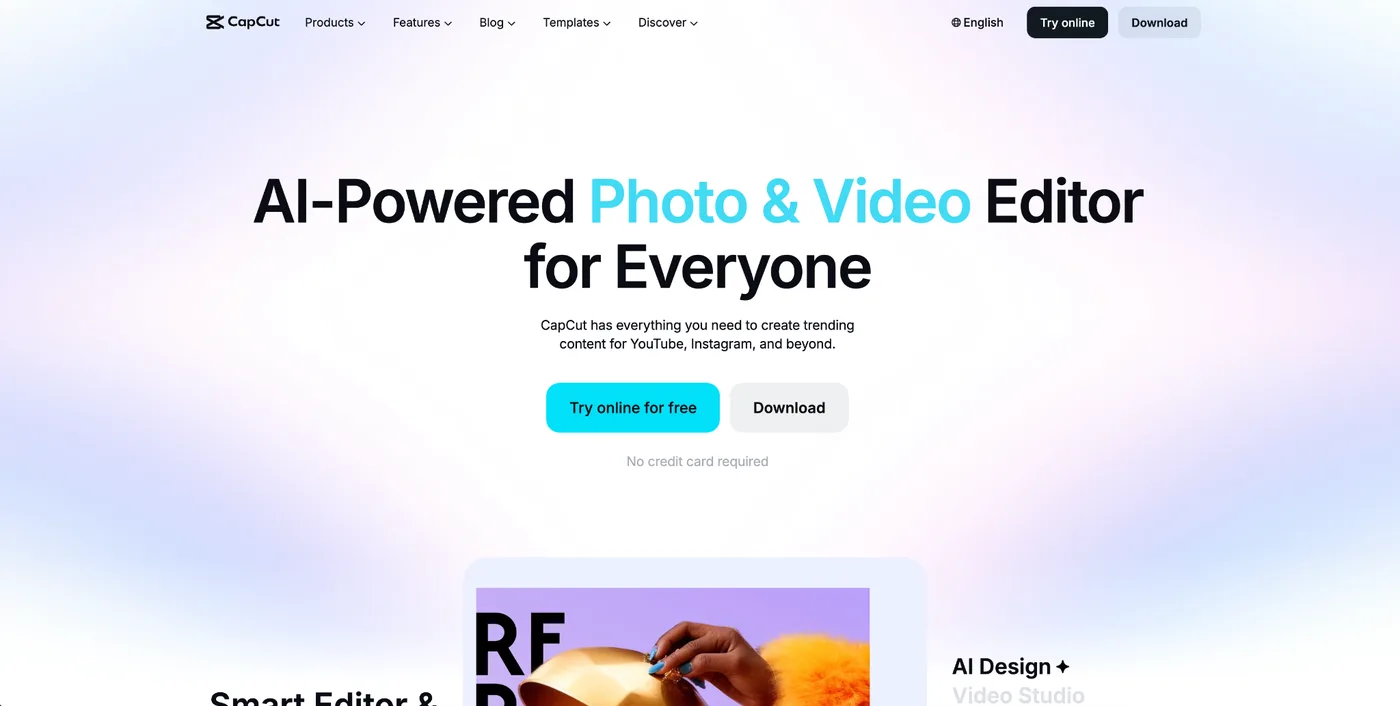
CapCut is particularly popular among TikTok and Instagram creators. You can edit a vertical video directly on your phone, with plenty of templates styled around current social media trends.
The basic controls are easy to pick up. If you want to experiment with more elaborate edits, the desktop version offers a multitrack timeline and keyframe animation. It’s a practical option for creators who regularly work with footage shot on a smartphone.
Best for: Reels, TikTok videos, and YouTube Shorts.
Price: Free. Pro costs $19.99/month or $179.99/year.
Pros:
- Extensive library of social video templates
- Speed curves for slow-motion effects
- Animated text and stickers
- Editing across mobile and desktop devices
Limitation: Some popular AI features, including auto captions, may require Pro.
3. Filmora
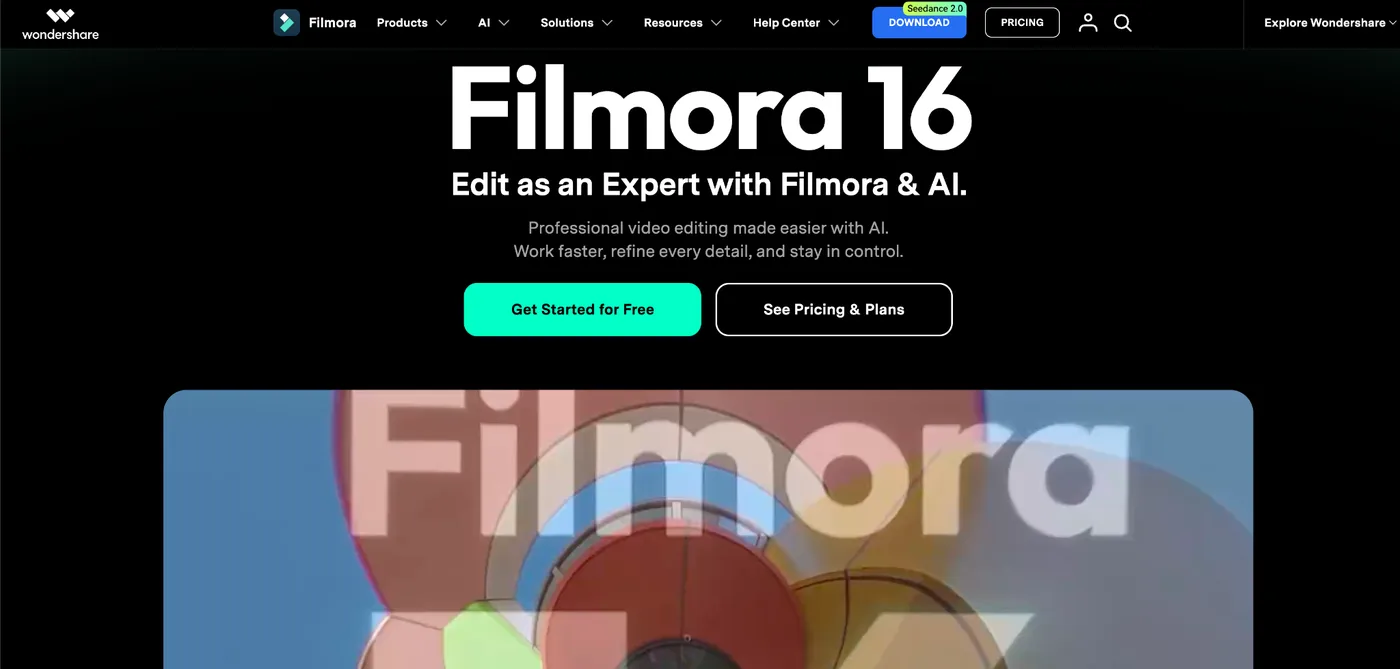
Filmora gives beginners quite a bit of room to experiment. For instance, you can use motion tracking to attach a label to an object as it moves across the frame. Audio ducking automatically lowers background music when someone speaks, which comes in handy when editing interviews.
Learning to cut footage is fairly straightforward, although the more advanced editing panels take some exploring.
Best for: YouTube creators interested in learning more advanced editing techniques.
Price: Free version with watermarked exports. Paid plans start at $69.99/year.
Pros:
- Keyframe animation and motion tracking
- Audio ducking
- Exports in up to 4K
- One-time purchase option
Limitation: Speech-to-text and certain other AI tools consume credits.
4. VEED
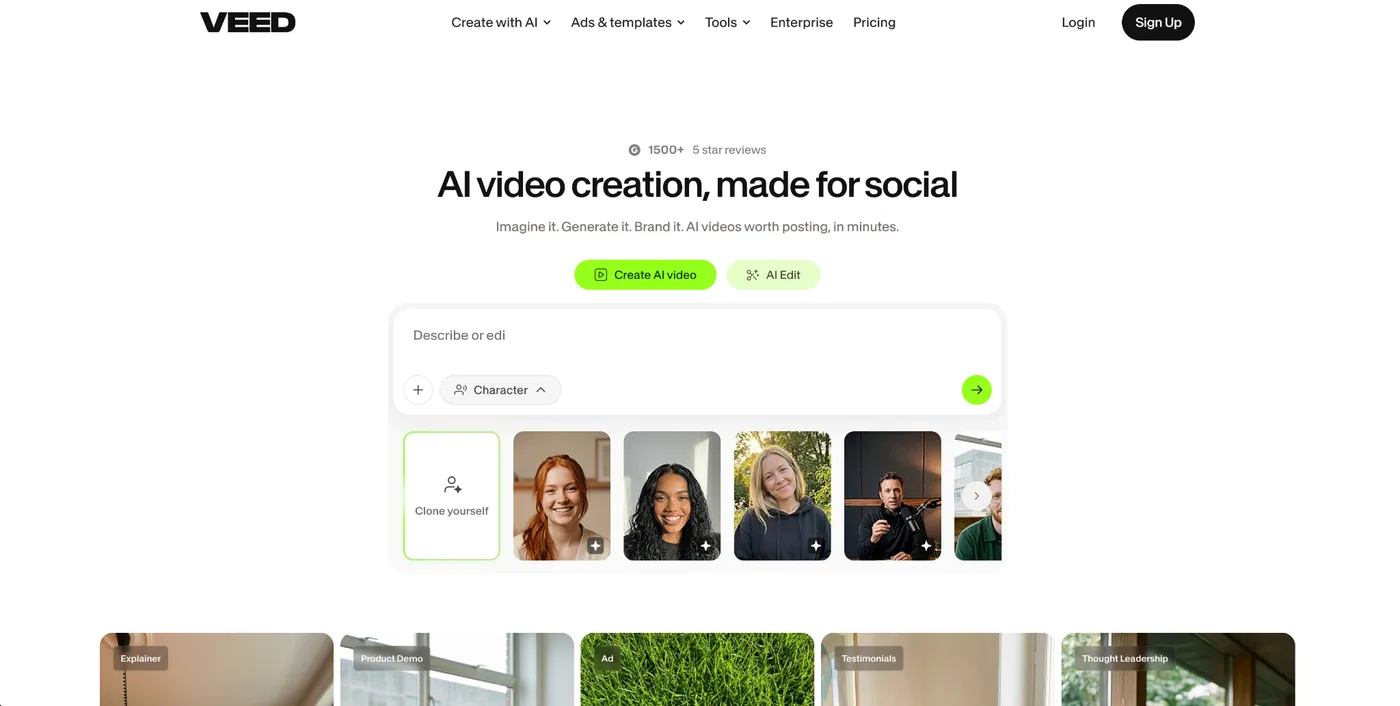
VEED lets you upload the recording to your browser and generate a transcript-based rough cut by editing the text. You can also add subtitles automatically and adjust their appearance to match your channel’s style.
The interface is accessible to first-time editors, especially those working with speech-heavy footage.
Best for: Talking-head videos and video podcasts.
Price: Free. Creator costs $25/month or $144 billed yearly.
Pros:
- Text-based video editing
- Customizable automatic subtitles
- Background noise removal
- Webcam and screen recording
Limitation: The free version includes a limited monthly auto-subtitling allowance.
5. Clipchamp
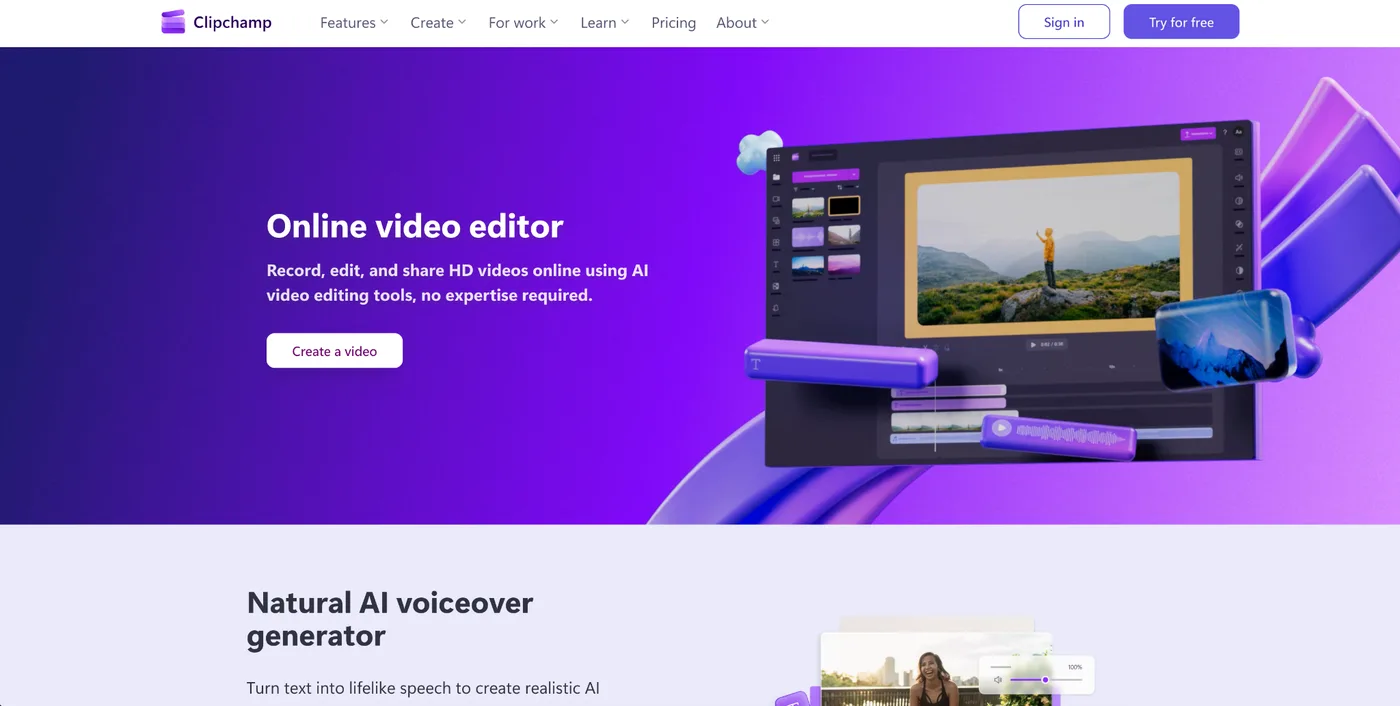
Microsoft’s Clipchamp is worth considering if you have a Windows computer and want to start editing without buying additional software. Its timeline is easy to navigate, and many of the features that beginners might expect to pay for are available for free.
The screen and camera recorder is particularly handy for making tutorials. You can record a demonstration with your webcam footage in a separate layer.
Best for: Screen-recorded tutorials and simple everyday videos.
Price: Free. Microsoft 365 Personal costs $99.99/year and Family costs $129.99/year. A standalone Premium plan is also available.
Pros:
- Watermark-free 1080p exports
- Free autocaptions with SRT download
- Automatic silence removal and noise suppression
- Built-in stock media
Limitation: 4K exports require a paid plan.
6. iMovie
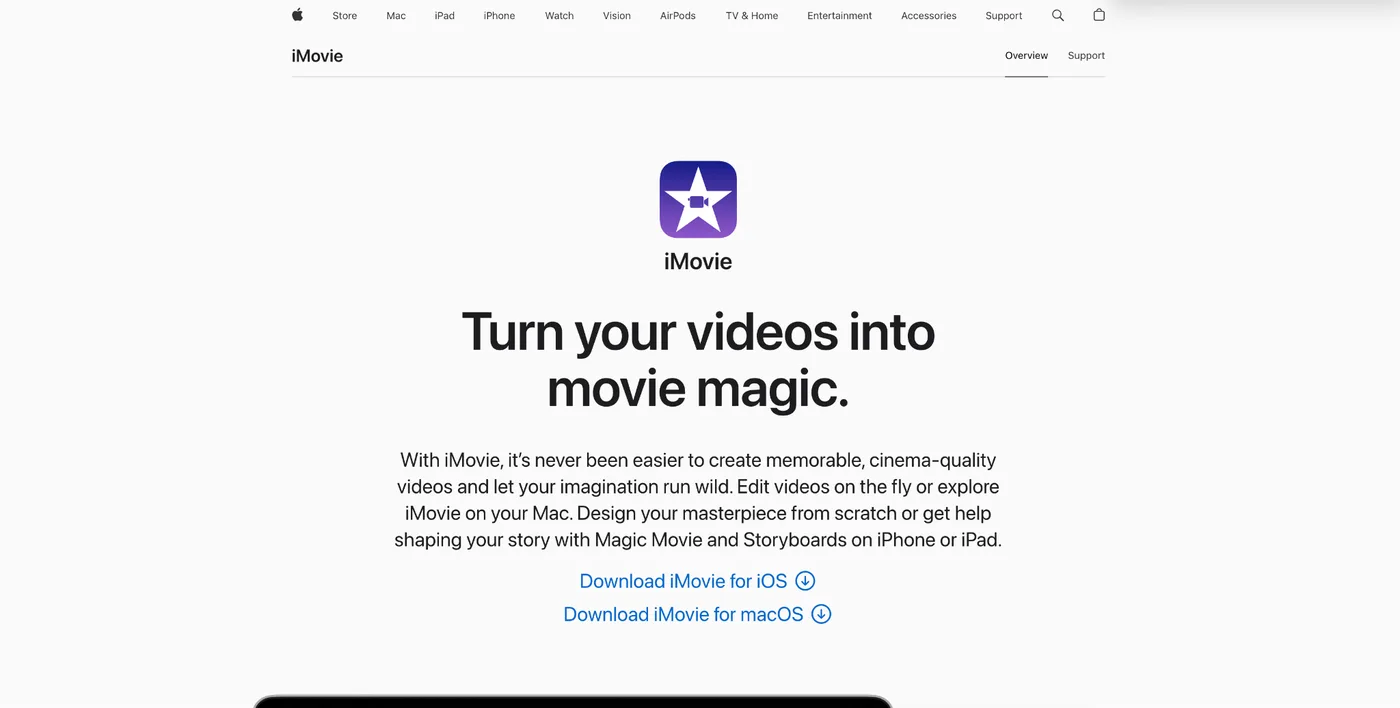
iMovie is a natural starting point for Apple users. On an iPhone or iPad, you can work with Storyboards, which suggest what shots to film for different types of videos. Magic Movie can assemble your selected footage automatically.
The Mac version has a traditional timeline. There are relatively few controls to learn compared with more advanced desktop editors, so putting together your first video shouldn’t take long.
Best for: Family videos and travel diaries on Apple devices.
Price: Free.
Pros:
- 4K video editing
- Green screen and split-screen effects
- Editing of Cinematic mode footage
- Transfer projects from iPhone or iPad to Mac
Limitation: Unavailable on Windows and Android.
7. Adobe Express
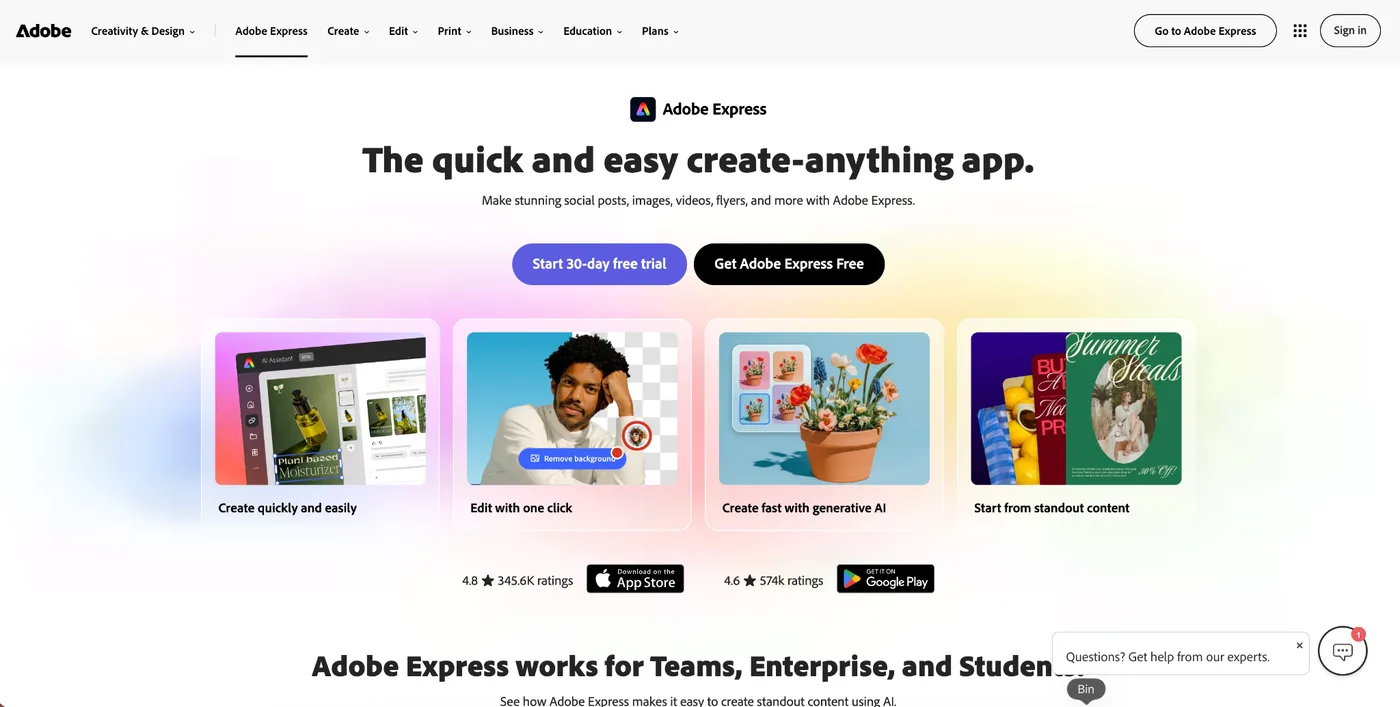
Adobe Express works well for creators who produce graphics alongside their videos. Suppose you’re announcing an upcoming event: you can make a short animated promo and design the accompanying social media posts using matching fonts and colors.
Its templates make quick projects easy, even with no previous editing experience. There are also individual tools for common tasks such as trimming or cropping a video.
Best for: Promotional videos and branded social media content.
Price: Free. Premium costs $9.99/month, with a 30-day trial.
Pros:
- Customizable video and graphic templates
- Built-in Adobe Stock assets
- Captioning and other Quick Actions
- 5 GB of storage on the free plan
Limitation: Some design tools, including video background removal, require Premium.
8. OpenShot
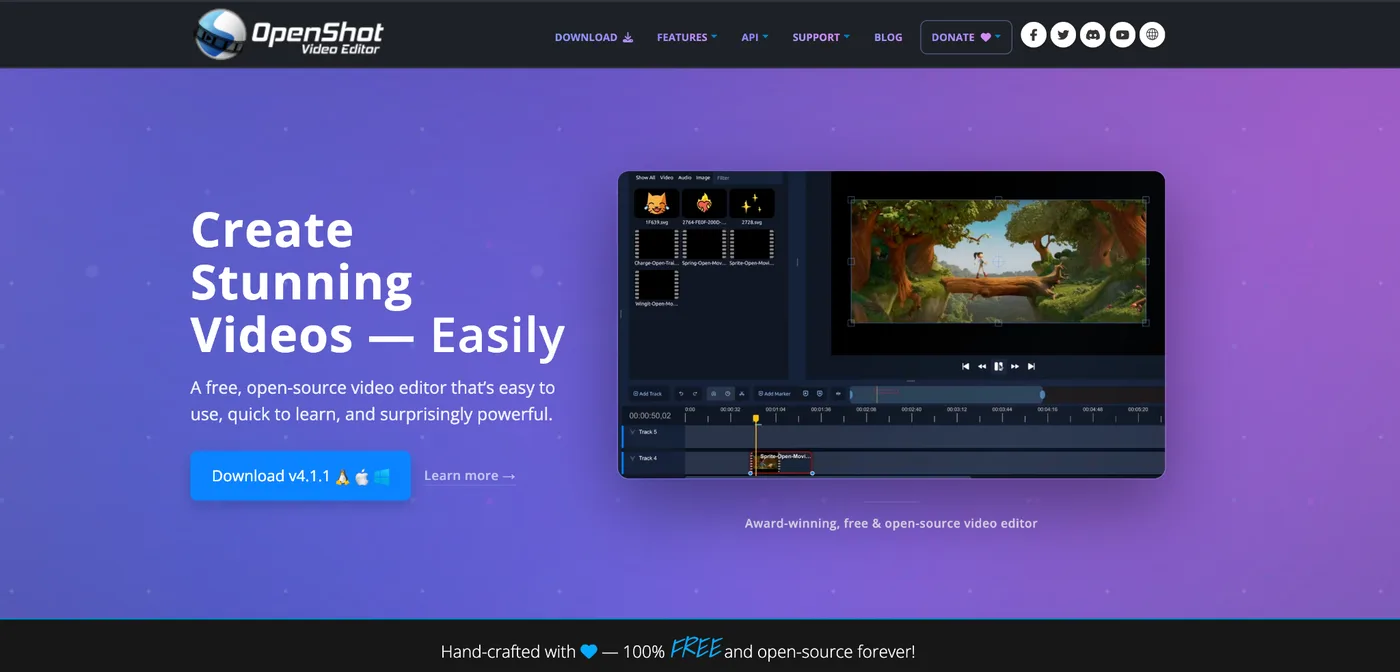
OpenShot is an open-source desktop editor. The latest versions introduce more detailed color grading controls, direct text editing on the video preview, and automatic optimization of demanding footage.
The built-in tutorial covers the basics, and you can learn more about keyframes and other editing techniques as you go. It’s also the only desktop editor on this list available for Linux.
Best for: Creators who want a free multitrack desktop editor.
Price: Free.
Pros:
- Unlimited timeline tracks
- Keyframe animation
- Color wheels, curves, and LUT support
- Screen, webcam, and audio recording
Limitation: Advanced AI workflows require additional setup with ComfyUI.
What is the best video editor for beginners?
When choosing a video editor for beginners, consider how often you’ll use it. Clipchamp and iMovie are excellent starting points for occasional projects. OpenShot is another free alternative, particularly for Linux users.
For regular YouTube uploads, Movavi Video Editor offers a fast editing workflow, while Filmora is worth exploring if you want to get into more detailed animation.
CapCut has a strong selection of tools for short-form content. VEED is especially convenient for videos that rely heavily on captions, and Adobe Express makes more sense if video is part of a broader social media design project.
Getting feedback on your first edits
Before publishing a video, ask someone to watch your first cut. They might notice an introduction that runs too long or background music that makes your voice difficult to hear.
With Krock.io, you can share an exported video via a link and receive comments on specific frames. Reviewers can draw directly on the footage to show you what needs changing. After making the changes in your editor, upload a new version to keep the review in one place.
The free plan supports two projects and unlimited reviewers.
Frequently asked questions
Which beginner video editors export without a watermark for free?
Clipchamp, iMovie, and OpenShot all offer watermark-free exports at no cost. Clipchamp’s free plan supports resolutions up to 1080p, while both iMovie and OpenShot support 4K. For more no-cost options, see our guide to the best free video editing software.
Which beginner video editor can add subtitles automatically?
Clipchamp offers free automatic captions. Movavi Video Editor, CapCut, Filmora, and VEED also generate captions from speech, although their export restrictions and AI usage allowances vary by plan.
Can I learn video editing by myself?
Yes. Start with a short project using footage you’ve already recorded. Learn to trim clips and adjust audio levels before moving on to more complicated effects. Most beginner editors provide tutorials you can follow at your own pace. Once the basics feel comfortable, these tips for editing videos faster will help you build a repeatable workflow.