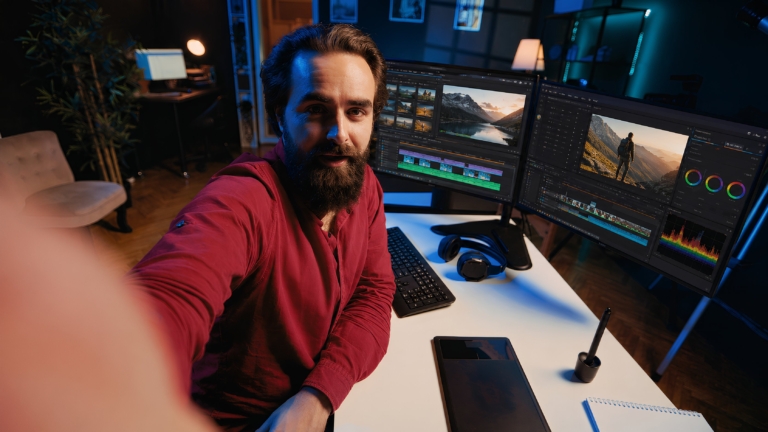



Bottom line: DaVinci Resolve is the best free video editing software overall, full 4K export, no watermark, and a professional color/audio/VFX suite, completely free. CapCut and iMovie are the fastest picks if you’re a beginner or editing for social media.
Finding good free video editing software is harder than it looks. Most “free” tools slap a watermark on your export, cut you off after a trial, or strip out so many features you outgrow them in a week.
The good news: genuinely excellent free video editors exist. Some are used by professional editors at major studios. Others are built for people just starting out or putting together content for social media. Below, you’ll find what each of these 12 tools is best for, which platforms they run on, and the real pros and cons, so you can pick the right one without wasting time.
Quick answer: For professional-quality editing with zero watermarks and zero cost, DaVinci Resolve wins outright. For speed and simplicity, CapCut (any platform) or iMovie (Mac) get you from raw footage to finished video the fastest.
Quick comparison: 12 best free video editing software in 2026
| Tool | Best for | Platforms | Watermark-free? | Skill level |
|---|---|---|---|---|
| DaVinci Resolve | Professional editing and color grading | Mac, Windows, Linux | Yes | Intermediate-Pro |
| CapCut | Social media and beginners | Mac, Windows, iOS, Android | Yes | Beginner |
| Shotcut | Open-source flexibility | Mac, Windows, Linux | Yes | Intermediate |
| iMovie | Mac users who want simplicity | Mac, iOS | Yes | Beginner |
| Lightworks | Professional-grade features | Mac, Windows, Linux | Limited (720p) | Intermediate-Pro |
| OpenShot | Simple cross-platform editing | Mac, Windows, Linux | Yes | Beginner |
| Kdenlive | Linux users and power users | Mac, Windows, Linux | Yes | Intermediate |
| Clipchamp | Windows 10/11 built-in editing | Windows, Web | Yes | Beginner |
| VN Video Editor | Mobile video editing | iOS, Android, Mac, Windows | Yes | Beginner |
| Canva Video Editor | Non-editors and social content | Web, iOS, Android | Yes (free plan) | Beginner |
| Movavi Video Editor | Beginners and everyday creators | Mac, Windows | No (watermark on free) | Beginner |
| DeeVid AI Video Editor | AI-powered video creation | Web, iOS, Android | Credit-based | Beginner |
What to look for in free video editing software
Not every “free” tier is equal. Here’s what actually matters before you commit to one.
True free vs. “free trial.” Some software markets itself as free but exports with a visible watermark or caps you at 720p. Others are free forever with full export quality. This guide only recommends tools that are free without a watermark, unless noted otherwise.
Platform compatibility. Make sure the editor runs on your operating system. Several tools here work across Mac, Windows, and Linux. A few are Mac-only or Windows-only, and mobile options are included for editors who work on the go.
Feature depth vs. ease of use. A beginner making YouTube videos has very different needs than a professional colorist doing commercial post-production. Use the skill-level column in the table above to narrow your options fast. Once you’ve picked a tool, these video editing tricks work in any of them.
Export quality and formats. Most tools on this list support 1080p and 4K export for free. Lightworks is the exception, its free plan caps at 720p unless you pay for a subscription.
The 12 best free video editing software in 2026
1. DaVinci Resolve, best for professionals
DaVinci Resolve is the most powerful free video editor available today, full stop. It’s used in Hollywood productions, advertising agencies, and broadcast studios. According to Blackmagic Design’s own product page, the free version ships with no feature gate up to Ultra HD 3840×2160 at 60fps. It also includes multi-user collaboration, everything most professional editors will ever need.
What sets it apart is the color grading suite. Nothing else on this list comes close. You also get a full audio mixing workstation (Fairlight) and visual effects tools (Fusion), all completely free. When you need more than the built-in toolset, a handful of free DaVinci Resolve plugins add AI subtitles, extra transitions and LUT management at no cost.
If you’re already a professional editor, or working toward that level, DaVinci Resolve should be your default choice. Evaluating it as a Premiere Pro replacement? Our guide to Premiere Pro alternatives covers pricing and how to handle client review outside the Adobe ecosystem. And once your edit is locked, Krock.io’s DaVinci Resolve integration lets you send it straight from your timeline for frame-accurate feedback.
Best for: Professional editors, colorists, film and commercial production
Platforms: Mac, Windows, Linux
Export: Unlimited, watermark-free, up to 4K (higher resolutions on the paid Studio version)
| Pros | Cons |
|---|---|
| Industry-standard color grading tools | Steep learning curve for new users |
| Full audio post-production suite | Requires a capable GPU |
| No feature gaps for most workflows on the free tier | Large file size (~2.5 GB download) |
| Multi-user collaboration in the free tier | Interface can feel overwhelming at first |
2. CapCut, best for beginners and social media
CapCut is one of the most popular free video editors for good reason. It’s fast to learn, works on almost every device, and its auto-caption and AI features are genuinely useful for social media creators.
The interface is clean and beginner-friendly. You can have a polished short-form video ready in minutes without knowing anything about timelines or keyframes. CapCut also handles vertical video natively, which matters if you’re editing for TikTok, Reels, or Shorts.
Best for: Beginners, social media creators, short-form content
Platforms: Windows, Mac, iOS, Android (web version also available)
Export: Watermark-free up to 4K
| Pros | Cons |
|---|---|
| Extremely easy to learn | Less capable for long-form or complex edits |
| Strong auto-caption and subtitle tools | Some AI features require account sign-in |
| Native vertical video support | Not suited for professional post-production |
| Works across mobile and desktop, free with no watermark | Interface changes frequently |
3. Shotcut, best open-source editor
Shotcut is a free, open-source video editor that handles a wide range of formats without needing separate codec installs. It runs on FFmpeg under the hood, so it can open almost any file type you throw at it.
The interface takes some getting used to, it doesn’t organize itself like Premiere or Final Cut, so there’s a learning curve coming from those tools. Once you know your way around, though, it’s genuinely capable: multi-track timelines, audio filters, and video effects all work well for a free tool.
Best for: Editors who want format flexibility and open-source software
Platforms: Windows, Mac, Linux
Export: Watermark-free, up to 4K
| Pros | Cons |
|---|---|
| Supports a huge range of video and audio formats | UI is not intuitive for beginners |
| Fully open-source and free | No built-in media library or stock footage |
| Good multi-track editing, cross-platform | Can feel slow on older hardware |
4. iMovie, best for Mac users
iMovie is Apple’s free video editor, and it’s genuinely good. If you’re on a Mac and not doing complex professional work, iMovie gives you what you need. That includes a clear timeline, solid color correction, noise removal, image stabilization, and a large template selection.
The limitations are real. You can’t do multi-camera editing beyond two angles, there’s no motion tracking, and export options are limited compared to DaVinci Resolve or Shotcut. But for YouTube videos, family projects, and straightforward short films, it’s fast and reliable. iMovie also syncs with your iPhone and iPad, so you can start an edit on mobile and finish on desktop. See Apple’s official iMovie support hub for the full device-sync setup. When you outgrow iMovie, Final Cut Pro is the natural step up on a Mac, and these free Final Cut Pro plugins extend it further.
Best for: Mac beginners, casual creators, YouTube content
Platforms: Mac, iOS (free, pre-installed on Apple devices)
Export: Watermark-free, up to 4K
| Pros | Cons |
|---|---|
| Free and pre-installed on Mac | Mac and iOS only |
| Clean, beginner-friendly interface | Limited to two video tracks |
| Seamless handoff between iPhone and Mac | No motion tracking or advanced effects |
5. Lightworks, best free professional option (with limits)
Lightworks has cut Hollywood films including The Wolf of Wall Street, Pulp Fiction, and Moulin Rouge. The free version gives you a genuinely professional editing environment. The catch: the free tier caps exports at 720p.
If you’re learning professional editing and don’t need HD delivery, Lightworks is worth exploring. The interface is powerful and performance is solid. For working editors who need 1080p or higher, though, you’ll hit the free tier ceiling fast.
Best for: Learning professional editing workflows, 720p delivery
Platforms: Windows, Mac, Linux
Export: 720p watermark-free (1080p and higher requires a paid plan)
| Pros | Cons |
|---|---|
| Used in real film and TV production | Free tier limited to 720p export |
| Professional-quality trimming and timeline tools | Steeper learning curve |
| Good performance on most hardware | Paid plan required for higher resolutions |
6. OpenShot, best simple cross-platform editor
OpenShot is a free, open-source editor built to be approachable for new users while still covering the basics well. It runs on Mac, Windows, and Linux, has a clean interface, and handles most standard editing tasks with no setup complexity.
It’s not the most powerful tool here. For straightforward cuts, color correction, and adding titles or transitions, it does the job, but if you want more control, you’ll outgrow it fairly quickly.
Best for: Beginners wanting a simple cross-platform option
Platforms: Windows, Mac, Linux
Export: Watermark-free, up to 4K
| Pros | Cons |
|---|---|
| Very beginner-friendly, completely free | Can be slow on complex timelines |
| Good format support, unlimited tracks and layers | Fewer advanced features than Shotcut or DaVinci |
7. Kdenlive, best for Linux and power users
Kdenlive is a free, open-source editor that’s been around since 2002. It’s well-regarded in the Linux video editing community, with a feature set that competes with mid-level paid software.
It supports multi-track timelines, keyframe animation, a full effects library, and proxy editing for smoother performance on slower machines. The Windows and Mac builds have improved significantly in recent years. It’s not as polished as DaVinci Resolve, but for a free open-source tool, it’s impressive.
Best for: Linux users, editors who want open-source power tools
Platforms: Linux, Windows, Mac
Export: Watermark-free, up to 4K
| Pros | Cons |
|---|---|
| Powerful feature set for a free tool, strong Linux support | Less polished UI than commercial alternatives |
| Proxy editing, keyframe animation, effects library | Can be unstable on complex projects |
8. Clipchamp, best built-in option for Windows users
Clipchamp is Microsoft’s video editor, built into Windows 10 and 11. If you’re on Windows and need a quick edit without downloading anything, Clipchamp is already there.
It’s genuinely capable for basic editing: a timeline, trimming, transitions, text overlays, and a stock footage and music library. The web-based version works across browsers too. For non-editors who need a fast turnaround, zero setup is hard to argue with.
Best for: Windows users, quick edits, non-editors
Platforms: Windows (built-in), web browser
Export: Watermark-free up to 1080p (4K with Microsoft 365)
| Pros | Cons |
|---|---|
| Already installed on Windows 10/11, no setup | Limited to 1080p on the free plan |
| Good stock footage and music library | Less capable than desktop editors |
9. VN Video Editor, best free mobile editor
VN Video Editor (also called VlogNow) is one of the most capable free mobile video editors available. (Editing vlogs on your phone? Our guide to vlogging strategies covers the content side.) It runs on iOS and Android, with desktop versions for Mac and Windows too.
Its timeline behaves more like a desktop editor than most mobile apps. You get multi-track editing, keyframe animation, speed curves, and LUT color grading, all free with no watermark. For mobile-first creators, that’s a serious toolset.
Best for: Mobile editors, travel creators, short-form video
Platforms: iOS, Android, Mac, Windows
Export: Watermark-free, up to 4K
| Pros | Cons |
|---|---|
| Full-featured for a mobile app, no paid tiers | Mobile interface can feel cramped |
| Keyframe animation and LUT import on mobile | Desktop version is less refined |
10. Canva Video Editor, best for non-editors
Canva’s video editor isn’t aimed at professional editors. It’s built for people who need social content, presentations, or marketing videos fast, and who’d rather not touch a timeline at all.
If you’re on a marketing team, running a small business, or making content without a dedicated editor, Canva makes it quick. Drag-and-drop templates, a large stock library, and brand kit features help non-technical users produce polished content, and the free plan covers most use cases.
Best for: Marketing teams, small business owners, non-editors
Platforms: Web, iOS, Android
Export: Watermark-free on the free plan, up to 1080p
| Pros | Cons |
|---|---|
| No learning curve, large template and stock library | Very limited compared to timeline-based editors |
| Brand kit keeps visuals consistent, works entirely in-browser | Minimal control over audio, limited export options |
11. Movavi Video Editor, best video editor with templates
Movavi Video Editor is an intuitive video editor with customizable video templates, one-click AI tools, and hundreds of drag-and-drop effects, made for beginners and everyday creators on Windows and Mac: YouTubers editing vlogs and tutorials, teachers preparing lessons, and families putting together birthday or travel videos. That beginner focus shows in small details, like hover previews that show each effect on your clip before you apply it.
Movavi Video Templates, a multi-style library of customizable, pro-looking, modular templates for any kind of video, is what sets it apart from the other tools. Each template is made of pre-edited Blocks, like an intro or a countdown, with music, transitions, and text already in place, and you can reorder, add, remove, or restyle them, so even a first project looks pro-edited. One-click AI tools handle auto subtitles, noise removal, silence removal, motion tracking, and auto-tracked cropping for vertical video, with no AI credits to track. And Movavi Ideas, a free tutorial hub, adds new editing tricks with step-by-step guides every week.
Best for: Beginners and everyday creators who want pro-looking videos made easy with customizable templates and AI tools
Platforms: Windows, Mac
Export: 60-second, watermarked exports on the free version; full-length, watermark-free exports on the full version, available monthly or annually
| Pros | Cons |
|---|---|
| Customizable templates and hundreds of built-in effects; one-click AI tools with no credits to track | Fewer advanced controls than professional editors |
| Beginner-friendly interface with hover previews; free weekly tutorials in Movavi Ideas | No web version or cloud integration |
12. DeeVid AI Video Editor, best for AI-powered video creation
DeeVid AI Video Editor isn’t a traditional timeline editor like DaVinci Resolve or Shotcut. It’s built for people who want to create or rework videos with AI instead of editing every cut by hand. Start from a text prompt, an image, an existing clip, or a product idea. The platform generates a short video with motion, transitions, effects, voiceover, or music.
That makes it especially useful for marketers, social creators, ecommerce teams, and small businesses that need video content quickly without learning a professional editing suite. The tradeoff is control: if you need frame-by-frame timeline editing or long-form post-production, a traditional editor is still the better fit.
Best for: AI-generated videos, social ads, product videos, quick creative variations
Platforms: Web, iOS, Android
Export: Free credits available; paid plans unlock more generation capacity
| Pros | Cons |
|---|---|
| Fast AI video creation from text, images, or footage | Less suitable for precise timeline editing |
| Useful for ads, social content, product videos | Credit-based system limits free usage, output may need revisions |
How to choose the right free video editor
Here’s a quick guide based on your situation:
- You’re a professional editor, or working toward it: Start with DaVinci Resolve. The learning curve is worth it, and you won’t need to switch tools as your skills grow. These YouTube channels for aspiring video editors will help you climb it faster. Once you have a tool, our guide on how to edit videos faster covers the workflow that saves the most time.
- You want AI-powered editing: Every tool above has some AI capability, but if AI automation is the main priority (auto-cut, AI voice cloning, text-to-video), our roundup of best AI video editing software covers tools built specifically for professional teams.
- You’re a beginner making YouTube or social content: CapCut for short-form, iMovie if you’re on Mac, Movavi Video Editor if you want customizable templates, or OpenShot for a simple desktop option on any platform.
- You’re on Linux: Kdenlive is your best bet. DaVinci Resolve also has a Linux build that performs well.
- You need to edit on your phone: VN Video Editor is the most capable free mobile option.
- You’re not an editor but need content fast: Canva or Clipchamp, zero setup, minimal learning curve.
- You need format flexibility: Shotcut. Its FFmpeg foundation handles almost any file type.
- You want a polished beginner tool before buying: Movavi is worth testing, just know the free version adds a watermark, you’ll need a paid license for clean exports.
After you edit: sharing and reviewing your work
Picking the right editor is step one. Once you finish a cut, you still need to share it with your team or client for feedback, and email threads with “version 14 final FINAL.mp4” aren’t a workflow.
Video proofing software lets reviewers leave time-coded comments directly on the video, no downloads, no back-and-forth messages, no confusion about which frame they mean. For every way to get video files to clients and collaborators, see our guide to 19 ways to share video files online.
Managing a full production, not just the edit? Take a look at project management software built for video editors.
Frequently asked questions
What is the best free video editing software with no watermark?
DaVinci Resolve, CapCut, Shotcut, iMovie, Kdenlive, OpenShot, VN Video Editor, and Clipchamp all export without watermarks on their free plans. Lightworks only adds one above 720p. Movavi is the exception, it watermarks every free export until you buy a license.
What is the best free video editing software overall?
DaVinci Resolve. It’s the only tool on this list with zero feature gaps on its free tier: professional color grading, a full audio suite, and no watermark. It’s also genuinely used in Hollywood and broadcast production, not just recommended for beginners.
What free video editor do most YouTubers use?
It depends on the creator. Beginners often start with iMovie on Mac or CapCut for speed. More experienced YouTubers frequently move to DaVinci Resolve, since the free version covers everything they need without ever hitting a paywall.
Is DaVinci Resolve really free?
Yes. The free version is genuinely free, with no watermark, no export limits, and no trial period. The paid Studio version adds a handful of advanced features, like higher frame-rate exports and some collaborative tools, but most editors never need them.
What is the easiest free video editing software for beginners?
CapCut and iMovie (Mac) are the easiest options for absolute beginners. Both have clean interfaces and don’t require understanding timelines deeply to finish a video. OpenShot and Clipchamp are solid beginner-friendly alternatives too.
What free video editor works on Windows, Mac, and Linux?
DaVinci Resolve, Shotcut, OpenShot, Kdenlive, and VN Video Editor all ship native versions for Windows, Mac, and Linux. That means you’re not locked into one operating system if your team works across platforms.
Can I use free video editing software for professional work?
Yes. DaVinci Resolve in particular is used in professional film and television production. Its free version has no meaningful feature gap compared to the paid Studio tier for most commercial and broadcast workflows.
Conclusion
The best free video editing software depends on what you’re making and how you work. For professional-quality editing, DaVinci Resolve is the clear winner, and it’s used in actual Hollywood productions. For beginners and social creators, CapCut and iMovie offer the fastest path from raw footage to finished video.
Whatever you choose, the goal is the same: finish the edit efficiently and share it clearly. Picking the right free video editing software is step one, building a clean review and delivery workflow around it is what keeps projects moving. If you’re looking for a way to collect client feedback without the email chaos, Krock.io’s frame-accurate video review tools can help. Clients get a way to comment on the exact frame they mean, no account required on their end.
About the author
Amina Wang is an Editor at Krock.io, where she covers creative production tools and workflow software for video teams. This roundup is based on each platform’s current official documentation, pricing pages, and published export/watermark terms, verified as of July 2026.