


Every editor who’s done client work has been through this: you finish a cut, export a file, upload it to some review platform, wait for processing, send a link, and then wait for the client to figure out how to leave a comment. They don’t. They email you instead.
Then the comments arrive over four separate emails, three Slack messages, and a voice note that starts with “so, the whole thing is great, but…”
The problem isn’t the feedback. It’s the distance between your DaVinci Resolve timeline and where the feedback ends up.
This guide walks through how to set up a DaVinci Resolve video review workflow using the Krock.io plugin — so your cuts go out for review from the timeline, client comments come back at the exact frame they belong to, and everything stays in one place.
Note: This workflow requires DaVinci Resolve Studio (the paid version). It does not work with the free version of DaVinci Resolve.
What You Need
- DaVinci Resolve Studio (any recent version)
- A Krock.io account — the free plan covers 2 projects and includes unlimited reviewers
- The Krock.io plugin zip file (downloaded from krock.io/davinci-resolve-studio-integration/)
Step 1: Download and Install the Krock.io Plugin
Go to krock.io/davinci-resolve-studio-integration/ and click Download. You’ll get a zip file — this is the plugin.
Unzip it. Inside, you’ll find the plugin folder. Move it to your DaVinci Resolve scripts directory:
On Mac:
/Library/Application Support/Blackmagic Design/DaVinci Resolve/Workflow Integration PluginsScripts/
On Windows:
C:\ProgramData\Blackmagic DesignRestart DaVinci Resolve Studio. The plugin now appears under Workspace → Workflow Integrations → Krock.io.
Step 2: Connect Your Krock.io Account
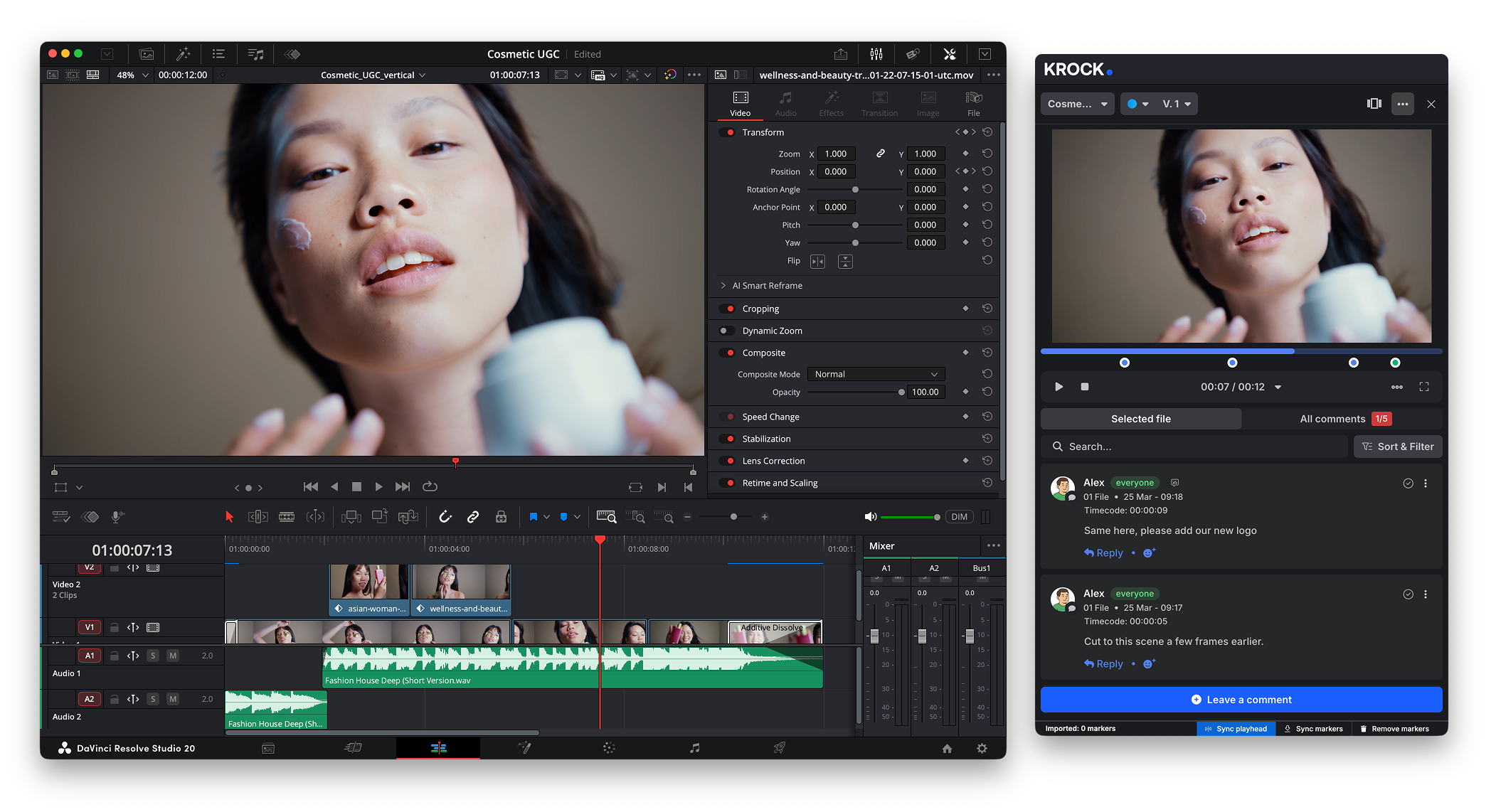
Open the plugin from Workspace → Workflow Integrations → Krock.io. You’ll be prompted to log in with your Krock.io credentials. Once connected, your Krock.io projects appear inside the panel.
If you’re setting up a new project, you can create it from the panel or your Krock.io dashboard — either way, it shows up here.
Step 3: Upload Your Video and Send for Review
With the Krock.io panel open, select the project you want to upload to. Upload your video to your Krock.io project via the panel or web browser.
Once uploaded, copy the review link from the panel. Send it to your client however you normally would — email, Slack, it doesn’t matter.
Step 4: Your Client Reviews Without Creating an Account
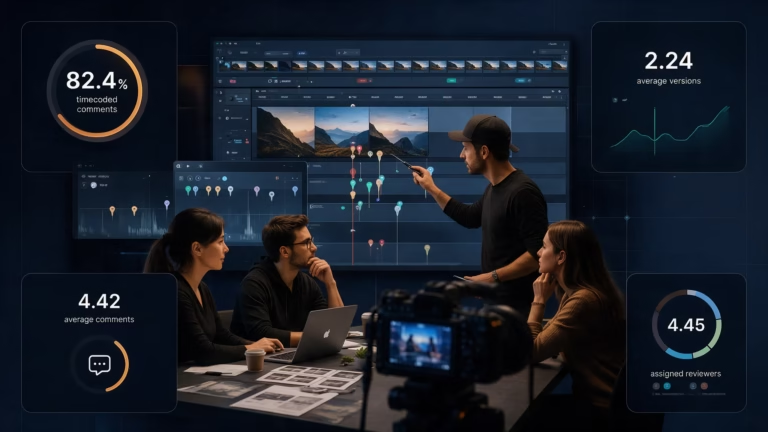
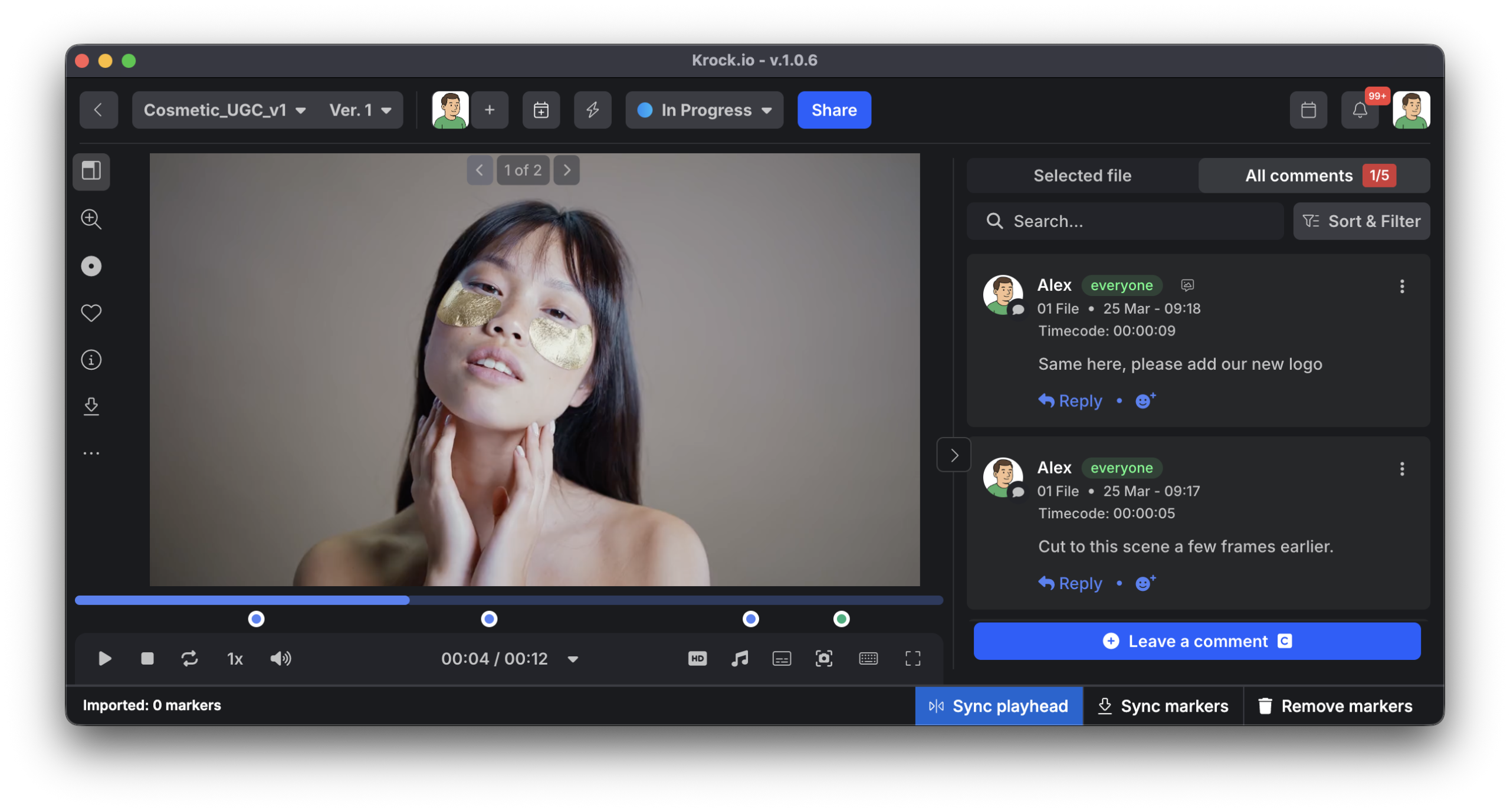
Your client clicks the link. The video loads in their browser. They can play it, pause it, and leave frame-accurate, timecoded comments — pinned to the exact second they’re talking about. They can draw on the frame if they need to point to something specific.
They don’t need a Krock.io account. They don’t install anything. One click, watch, comment.
This matters more than it sounds. The biggest drop-off in most review workflows isn’t the tool — it’s the moment a client hits a login screen they weren’t expecting and sends an email instead. If you’re comparing options, see our roundup of best video review software for a broader look at what’s available.
Step 5: Sync Comments Back to Your Timeline as Markers
Here’s the part that closes the loop.
Once your client has left comments, open the Krock.io panel in DaVinci Resolve Studio and sync the feedback. The timecoded comments from Krock.io sync back to your Resolve timeline as markers — click a marker and your playhead jumps to that exact frame.
You see the note at the exact frame it belongs to. You make the fix. You mark it resolved. The revision round moves forward without you losing your place in Resolve.
Why this DaVinci Resolve review workflow saves time
The standard alternative — export, upload, share, collect comments in a browser, copy timestamps manually into the edit — takes longer and introduces constant small errors. “Around 1:14” ends up meaning different things in print than on a timeline. You fix the wrong frame. The client asks again.
Time-coded comments that sync back to Resolve as markers eliminate the translation step entirely. The marker is at 1:14:08. Your playhead is at 1:14:08. You fix 1:14:08.
For teams running multiple projects with multiple clients, this compounds fast. One extra minute per comment, five comments per round, three projects per week — over a month, that’s time that should be going toward actual editing. This is what video proofing software is built for — not just viewing, but closing the feedback loop without leaving your edit.
According to Blackmagic Design, DaVinci Resolve Studio supports third-party workflow integrations specifically to extend the post-production pipeline — the Krock.io plugin uses this native API rather than an external workaround.
Pricing
The Krock.io free plan covers 2 projects with unlimited reviewers — enough to test the workflow before committing. The Pro plan is $10 per user per month, which includes unlimited projects, 4K playback, and at least 2 TB of storage.
For comparison: Frame.io Pro is $15/user/month (up to 5 members); Team is $25/user/month. Both platforms give client reviewers free access via share links. The saving with Krock.io is on per-member seat pricing — $10 vs $15–25 per seat.
Next Steps
If you’re coming from Frame.io, see the full list of Frame.io alternatives or the detailed Krock.io vs Frame.io comparison for a feature-by-feature breakdown. Or start with the free trial — no credit card, unlimited reviewers from day one, and the DaVinci Resolve Studio plugin is included.
Watch the walkthrough video: How to Use Krock.io with DaVinci Resolve Studio →