Krock.io handles all billing through Stripe. You can update your payment method, billing address, and download invoices — all from your Profile page.
Before you start
- You must be the workspace owner or have billing access.
- Changes apply to your next billing cycle unless noted otherwise.
Open your billing settings
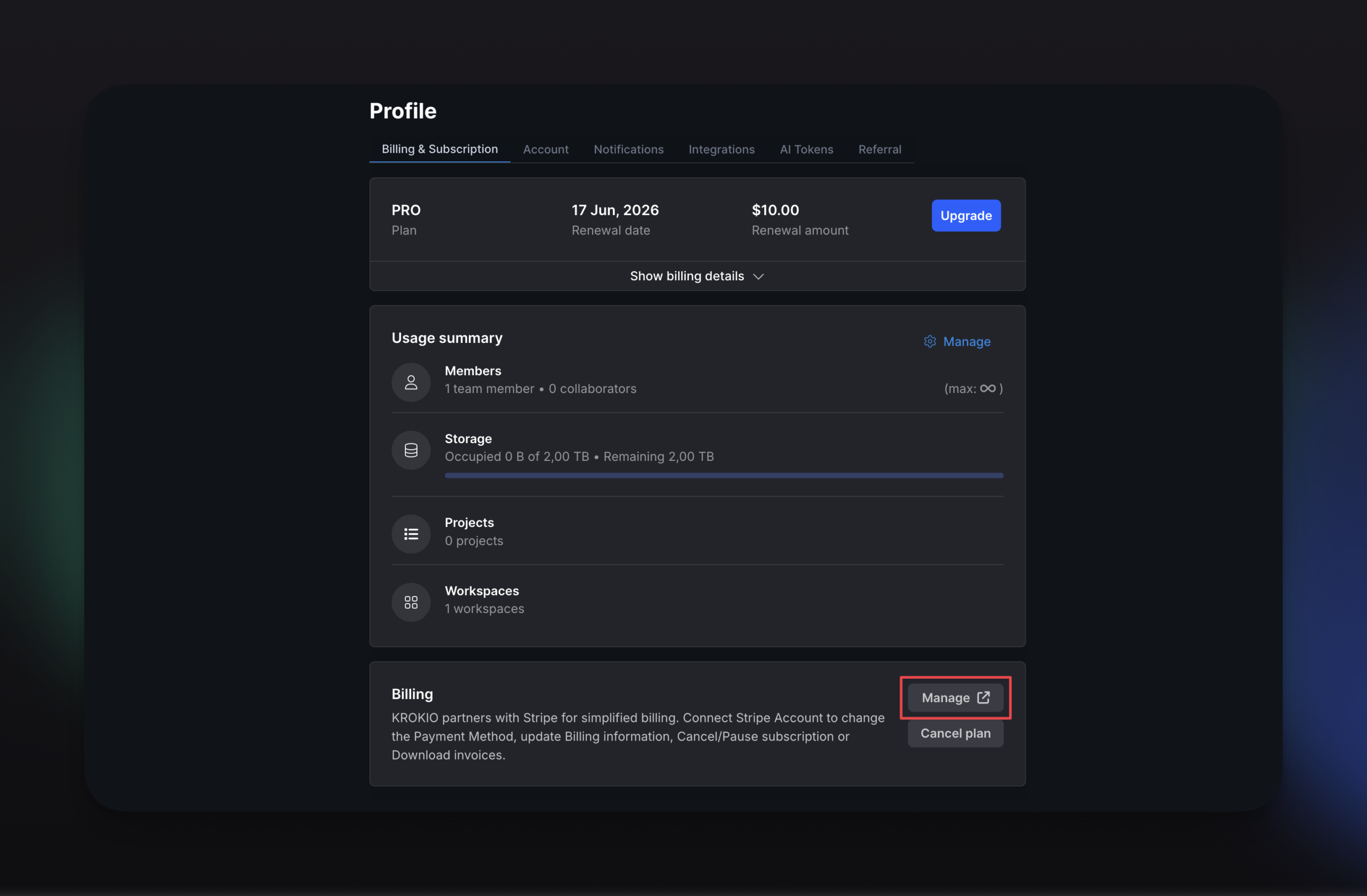
- Go to
platform.krock.io/profile. - Click the Billing & Subscription tab.
- Scroll to the Billing section at the bottom of the page.
- Click Manage to open the Stripe billing portal.
Update your payment method
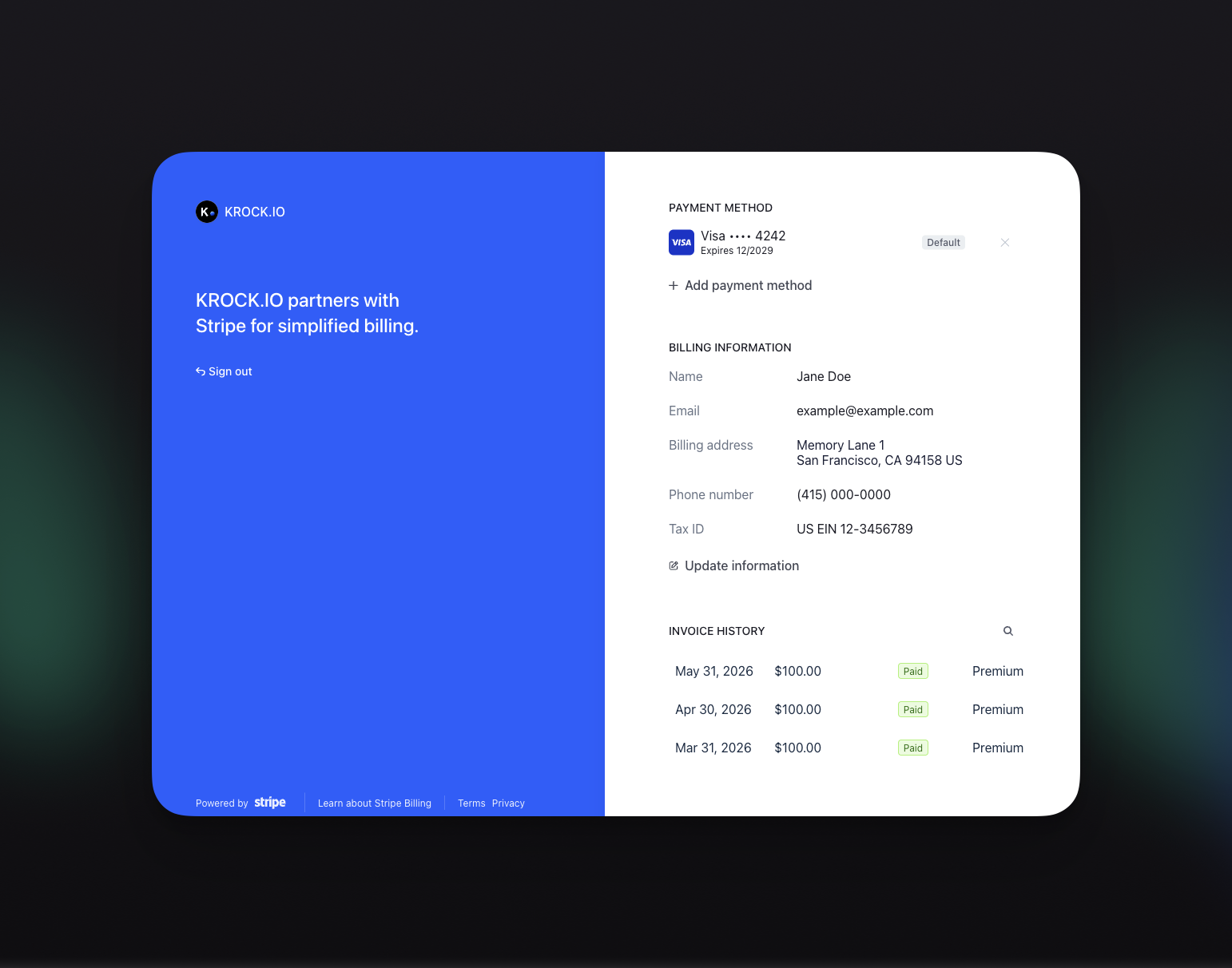
- In the Stripe portal, scroll to Payment Method.
- Click the … menu next to your current card.
- Select Update to replace the card, or click + Add payment method to add a new one.
- Enter your new card details and save.
Update your billing information
- In the Stripe portal, scroll to Billing Information.
- Click Update information.
- Edit your name, email, or billing address.
- Save your changes.
View and download invoices
- In the Stripe portal, scroll to Invoice History.
- Click any invoice in the list to open it.
- On the invoice page, click Download invoice or Download receipt.