Use Activity to see everything that has happened in a project or stage. Check whether a file or stage was viewed, who opened it, who made changes, and what was added or removed — all in one place.
Project-level activity
Project activity captures the full history of a project: stages, files, team members, versions, and every comment that passed through it.
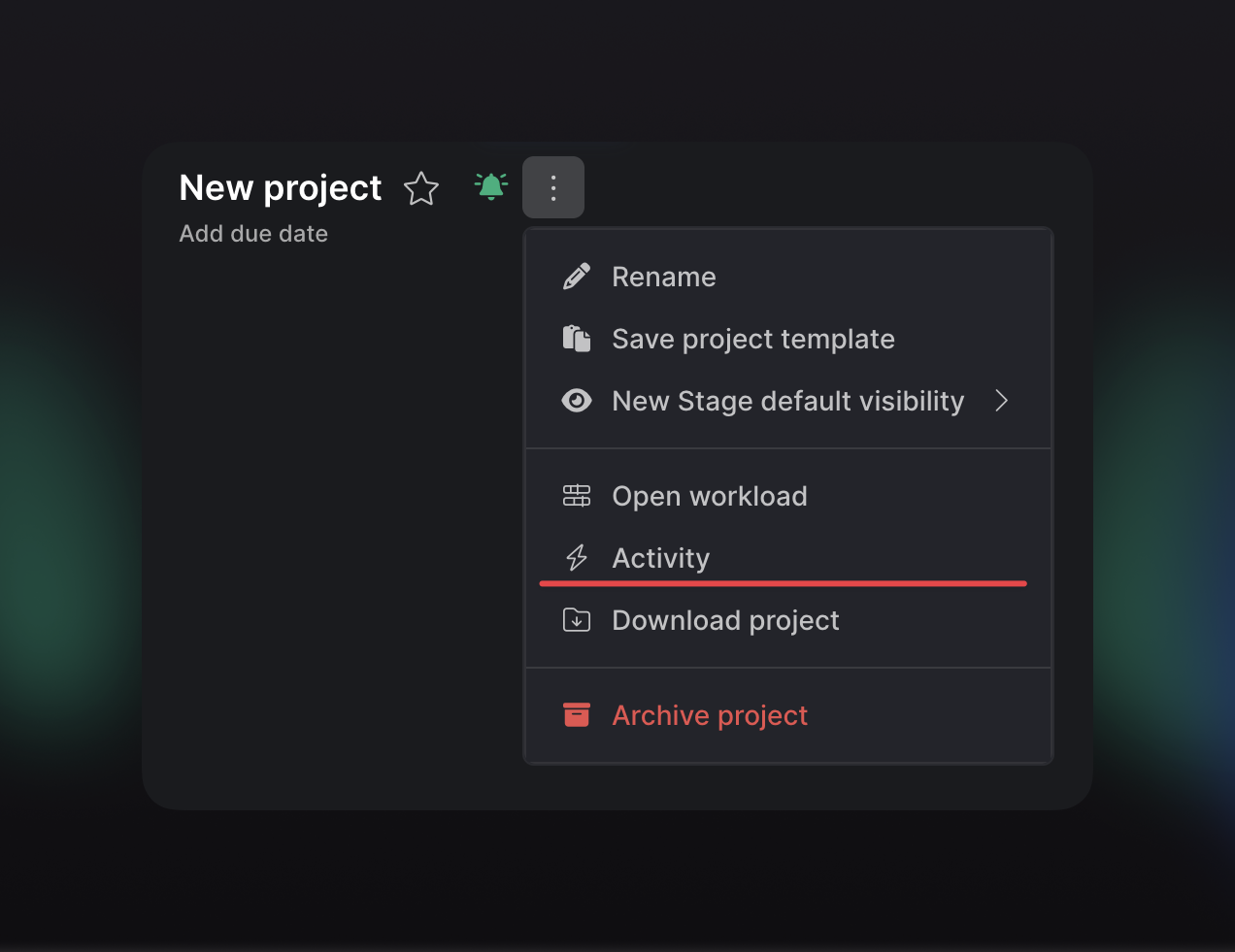
How to open a project activity
- Open any project and click the three-dot menu (⋯) next to the project name in the top bar.
- Select Activity from the dropdown.
- The Activity panel slides open on the right, showing a chronological feed of all project events.
Each entry shows who did what and when, down to the minute. Team members and reviewers both appear in the log.
What you’ll see in the project activity
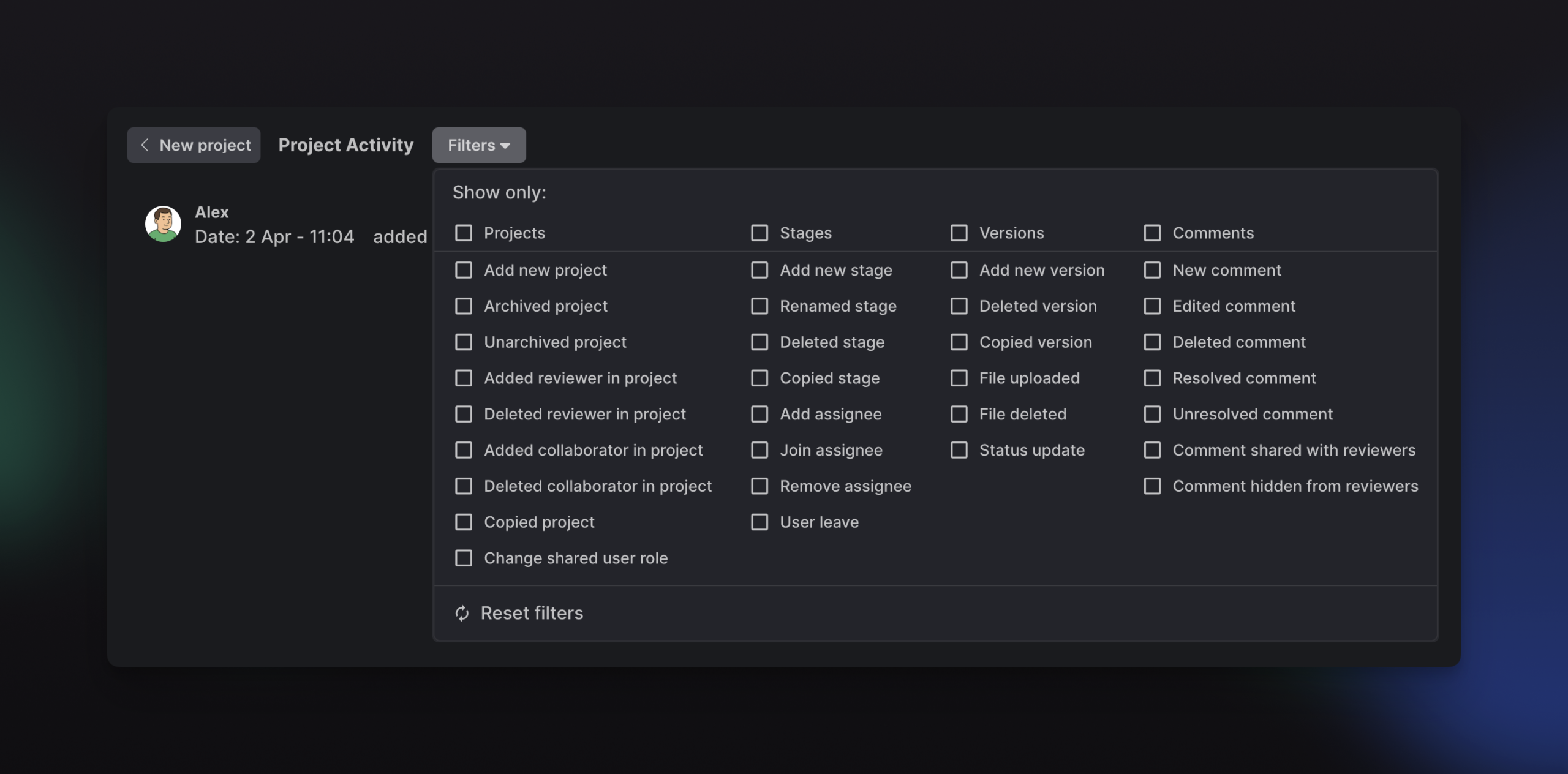
The feed covers a wide range of actions. You can filter to show only the event types you care about. Here’s what’s tracked:
Projects
- Add new project
- Archived project
- Unarchived project
- Copied project
- Change shared user role
Team & access
- Added reviewer in project
- Deleted reviewer in project
- Added collaborator in project
- Deleted collaborator in project
Stages
- Add new stage
- Renamed stage
- Deleted stage
- Copied stage
- Add assignee / Join assignee / Remove assignee
- User leave
Versions & files
- Add new version
- Deleted version
- Copied version
- File uploaded
- File deleted
- Status update
Comments
- New comment
- Edited comment
- Deleted comment
- Resolved comment
- Unresolved comment
- Comment shared with reviewers
- Comment hidden from reviewers
Filtering the project activity feed
Click the Filters button at the top of the activity panel to open the filter menu. Check any combination of event types, then close the menu. The feed updates immediately to show only those events. Click Reset filters to return to the full history.
Stage-level activity
When you need to zoom in on a specific piece of content, stage-level activity provides the same level of detail, scoped to that stage only. It also adds something project activity doesn’t: viewer tracking.
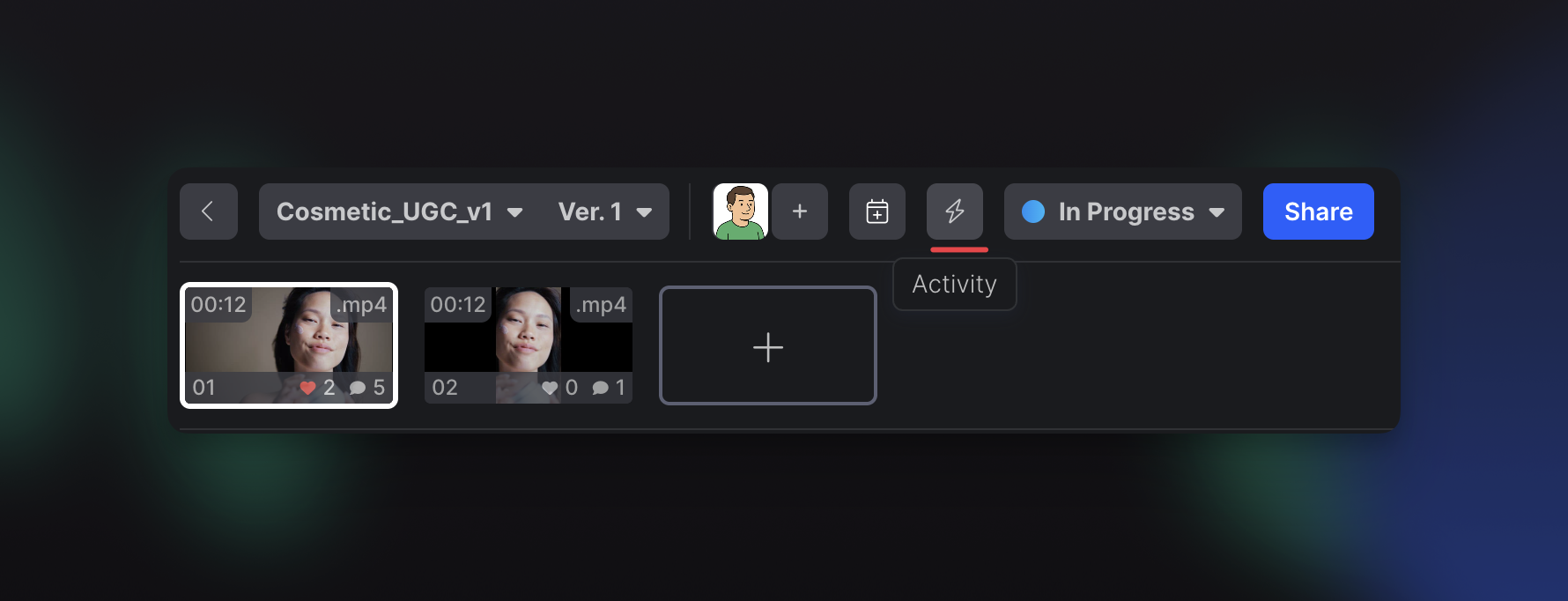
How to open a stage activity
- Open a stage and click the lightning bolt icon in the top toolbar.
- The Activity panel opens with two tabs: Recent Views and History.
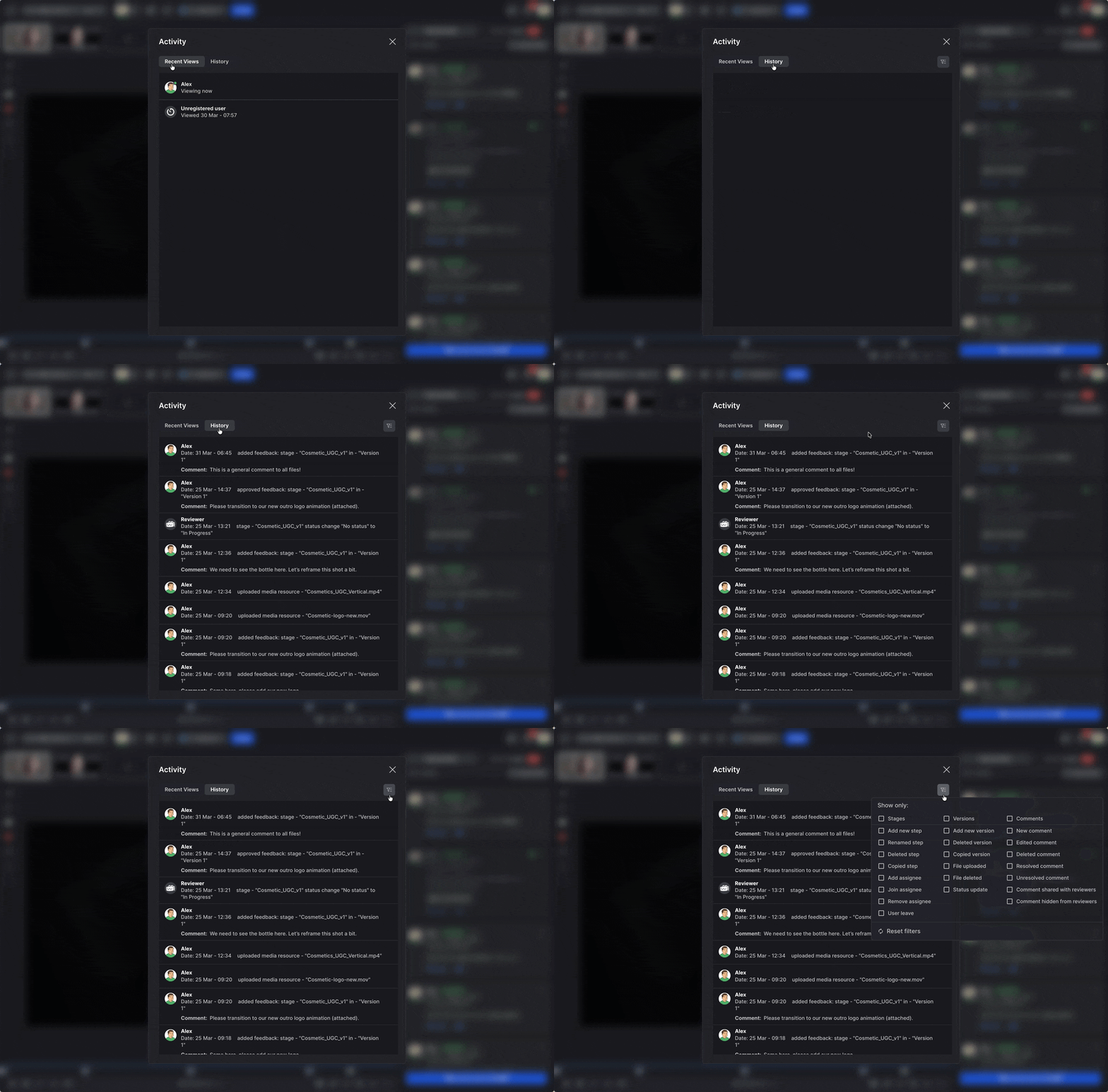
Recent Views tab
Shows who has opened this stage and when. You’ll see team members, reviewers, and even unregistered users (people who accessed the stage via a shared link without logging in). A green dot next to a name means they’re viewing the stage right now.
This is useful for confirming that a client or reviewer has reviewed the latest version before you follow up.
History tab
A chronological log of all activity within the stage. The filter options here are scoped to stage-level events:
Stages
- Add a new step
- Renamed step
- Deleted step
- Copied step
- Add assignee / Join assignee / Remove assignee
- User leave
Versions & files
- Add new version
- Deleted version
- Copied version
- File uploaded
- File deleted
- Status update
Comments
- New comment
- Edited comment
- Deleted comment
- Resolved comment
- Unresolved comment
- Comment shared with reviewers
- Comment hidden from reviewers
Have questions? Reach out at krock.io/contact or create the in-app ticket.