Webhooks allow krock.io to automatically send real-time notifications to your other applications whenever important events occur in your projects. This powerful feature helps you build seamless workflows and keep your entire team in sync across multiple platforms.
What are webhooks?
A webhook is an automated message that krock.io sends to another application when a specific event happens. For example, a new comment is added or a project status changes. Instead of constantly checking krock.io for updates, webhooks push information to your other tools instantly.
Think of it like this: rather than repeatedly calling someone to ask, “Is it ready yet?” webhooks are like getting a text message the moment something is ready. It’s automatic, instant, and efficient.
Why use webhooks with krock.io?
Webhooks help you:
- Automate your workflow – Trigger actions in other apps without manual intervention
- Stay informed in real-time – Get instant notifications in Slack, email, or your preferred tools
- Integrate seamlessly – Connect krock.io with your existing tech stack
- Save time – Eliminate the need to manually sync information between platforms
How to Access Webhooks in krock.io
Follow these steps to get started:
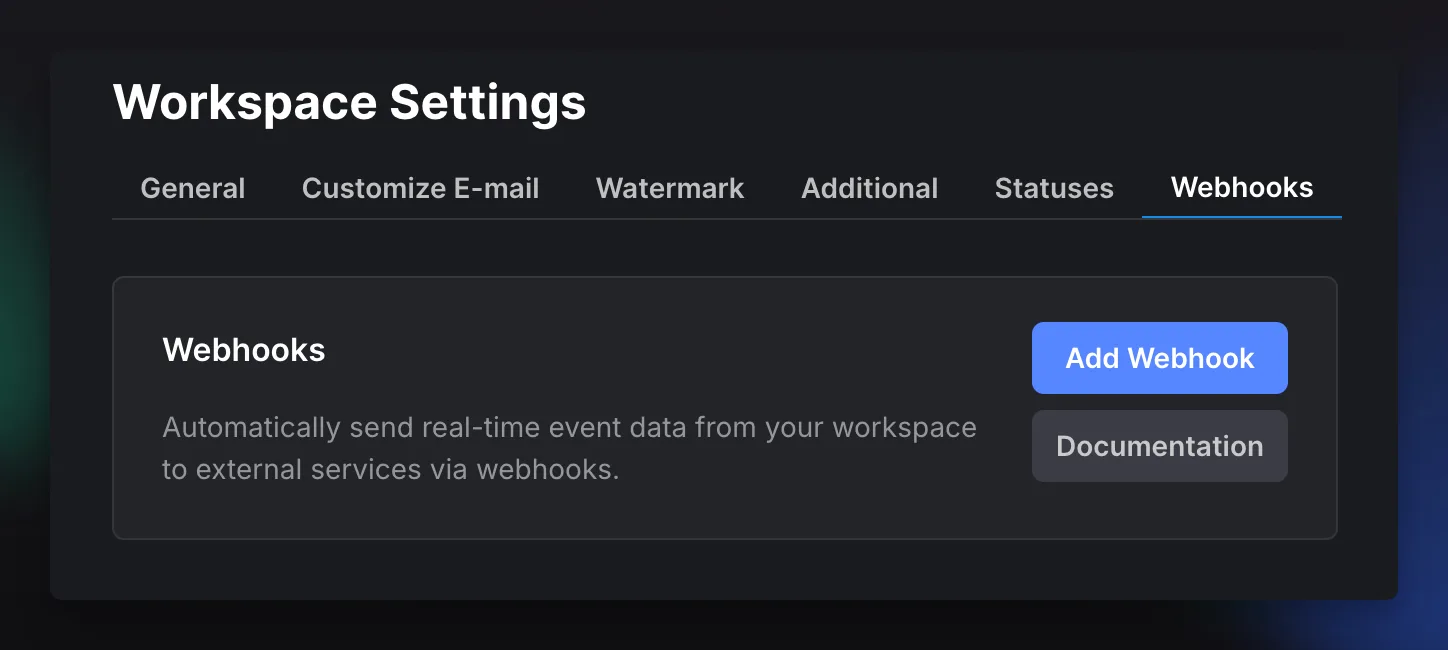
- Open Workspace Settings – Navigate to your workspace and click on the settings icon
- Go to the Webhooks tab – You’ll find this in the top navigation menu
- Click “Add Webhook”
Configuring Your Webhook
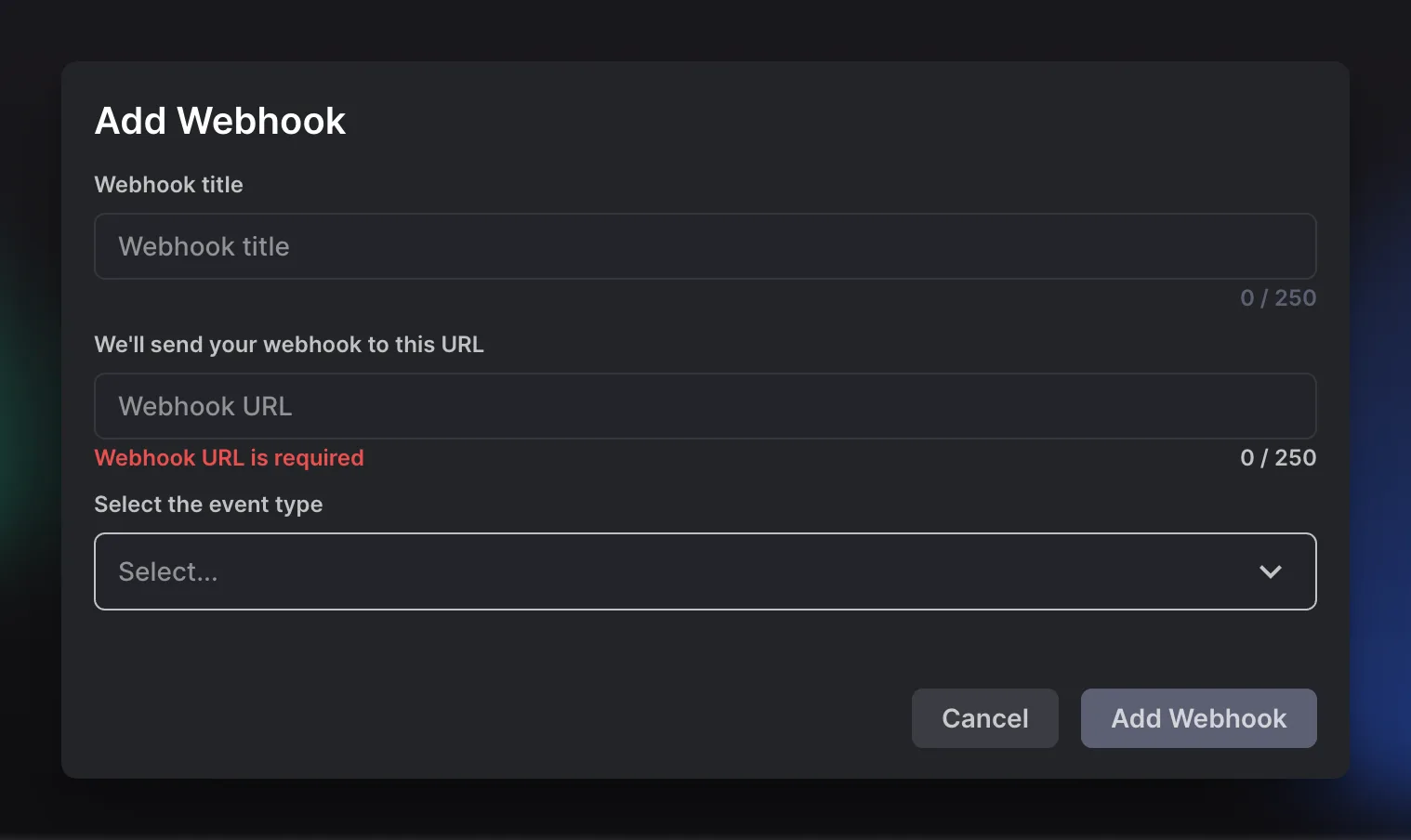
Webhook title: Give your webhook a descriptive name to help you identify its purpose later.
Webhook URL: Enter the endpoint URL where krock.io will send the webhook data. This is the destination address of the external service you want to connect to. The URL field is required.
Select the event type: Choose which events in krock.io will trigger this webhook.
KROCK – n8n – Discord Automation
The best way to understand webhooks in action is to see them working in real time. In the video below, we walk you through a complete hands-on example — connecting KROCK.io with Discord to automatically create channels and forward comments the moment they happen. Follow along to set up your first webhook automation from scratch.
Webhook events
Each webhook you create fires on one or more events. When an event happens, krock.io sends a POST request to your webhook URL with a JSON payload describing what changed.
Events are grouped into six categories: projects, stages, versions, media, comments, and replies. Pick the events you need when you add or edit a webhook under Select the event type.
Event groups at a glance
| Group | Events | Data included in the payload |
|---|---|---|
| Projects | create_project, delete_project, rename_project, change_duedate_project |
workspaceData, projectData |
| Stages | create_stage, delete_stage, rename_stage, change_duedate_stage, change_status_stage |
workspaceData, projectData, stageData |
| Versions | create_version, delete_version |
workspaceData, projectData, stageData, versionData |
| Media | upload_media, delete_media, rename_media |
workspaceData, projectData, stageData, versionData, mediaData |
| Comments | create_comment, edit_comment, delete_comment, resolved_comment |
workspaceData, projectData, stageData, versionData, mediaData*, commentData |
| Replies | create_replies, edit_replies, delete_replies |
workspaceData, projectData, stageData, versionData, mediaData*, commentData, replyData |
* mediaData appears only when the comment is attached to a media file. See Comment events.
How payloads are structured
Payloads are nested and build on each other. workspaceData and projectData are in every event. Each deeper group adds one more object on top.
Workspace → Project → Stage → Version → Media → Comment → Reply
So a create_comment payload contains everything down to the comment, while a create_project payload contains only the workspace and project. Every object also carries a connector string and a connectorObjects array, which you use to attach and reuse saved values (see Saving and Using Connector Parameters above).
Project events
Fire when a project is created or its top-level details change.
| Event | Fires when |
|---|---|
create_project |
A new project is created |
delete_project |
A project is deleted |
rename_project |
A project’s title is changed |
change_duedate_project |
A project’s due date is set or changed |
Payload includes: workspaceData, projectData
Stage events
Fire when a stage (also called a step in URLs) changes. Stages live inside a project.
| Event | Fires when |
|---|---|
create_stage |
A new stage is created |
delete_stage |
A stage is deleted |
rename_stage |
A stage’s title is changed |
change_duedate_stage |
A stage’s due date is set or changed |
change_status_stage |
A stage’s status changes (for example, In Review → Approved) |
Payload includes: workspaceData, projectData, stageData
Version events
Fire when a version is added to or removed from a stage.
| Event | Fires when |
|---|---|
create_version |
A new version is added to a stage |
delete_version |
A version is deleted |
Payload includes: workspaceData, projectData, stageData, versionData
Media events
Fire when a file is uploaded, removed, or renamed.
| Event | Fires when |
|---|---|
upload_media |
A file is uploaded to a version |
delete_media |
A media file is deleted |
rename_media |
A media file is renamed |
Payload includes: workspaceData, projectData, stageData, versionData, mediaData
Note: On
upload_media, video files are still transcoding when the event fires. TheconvertVideosarray reports"statusConvert": "in_progress"until each resolution finishes.
Comment events
Fire when a comment is added, changed, or resolved.
| Event | Fires when |
|---|---|
create_comment |
A new comment is added |
edit_comment |
A comment’s text is changed |
delete_comment |
A comment is deleted |
resolved_comment |
A comment is marked as done |
Payload includes: workspaceData, projectData, stageData, versionData, mediaData*, commentData
Note:
mediaDatais included only when the comment is attached to a media file. General comments left on a stage arrive without it, so check for the object before you read from it.
Reply events
Fire when a reply on a comment is added or changed.
| Event | Fires when |
|---|---|
create_replies |
A reply is added to a comment |
edit_replies |
A reply’s text is changed |
delete_replies |
A reply is deleted |
Payload includes: workspaceData, projectData, stageData, versionData, mediaData*, commentData, replyData
Note: As with comment events,
mediaDataappears only when the parent comment is attached to media.
Payload data objects
Every payload is a JSON object built from one or more of the objects below. URLs shown here (logo, avatar, media sources) are shortened for readability — the real values are signed and expire, so use them soon after you receive them.
workspaceData
The workspace the event belongs to. Present in every event.
| Field | Description |
|---|---|
id |
Workspace ID |
slug |
URL-safe workspace name |
title |
Workspace display name |
subdomain |
Sharing subdomain |
logo |
Workspace logo URL (signed, expires) |
connector |
String used to save and reuse connector parameters |
connectorObjects |
Saved values attached to this workspace |
"workspaceData": {
  "id": 14,
  "connector": "Workspace:14-workspace-14-oaJCugi95S5...",
  "slug": "krockio",
  "title": "krock.io",
  "subdomain": "share",
  "logo": "https://d3ivy5c7vb1n6k.cloudfront.net/pm/.../logo.webp",
  "connectorObjects": [ ],
  "NoIdentConnectorObjects": [ ]
}
projectData
The project the event belongs to. Present in every event.
| Field | Description |
|---|---|
id |
Project ID |
title |
Project name |
slug |
URL-safe project name |
createdDate |
Creation time (Unix ms) |
dueDate |
Due date (Unix ms), or null |
url |
Link to the project |
connector |
String for saving connector parameters |
"projectData": {
  "id": 259396,
  "connector": "Project:259396-project-259396-oaJCugi95S5...",
  "slug": "n8nslackproject1",
  "title": "n8n-Slack-Project1",
  "createdDate": 1782829733000,
  "dueDate": null,
  "filesSize": null,
  "preview": "",
  "url": "https://share.krock.io/projects/259396",
  "connectorObjects": [ ]
}
stageData
The stage (step) the event belongs to. Added from stage events onward.
| Field | Description |
|---|---|
id |
Stage ID |
title |
Stage name |
description |
Stage description |
status |
Review status (for example, no-status, approved) |
type |
Stage type (for example, assets) |
isFolder |
true if the stage is a folder |
startDate / dueDate |
Schedule dates (Unix ms), or null |
assignee |
Array of assigned users (userId, name, email, avatar) |
url |
Link to the stage |
connector |
String for saving connector parameters |
"stageData": {
  "id": 1425655,
  "connector": "Stage:1425655-stage-1425655-SLeN9gS9b0c...",
  "slug": "n8nslackstage1",
  "title": "n8n-Slack-stage1",
  "description": "",
  "createdDate": 1782829745000,
  "startDate": 1782792000000,
  "dueDate": null,
  "isFolder": false,
  "type": "assets",
  "status": "no-status",
  "url": "https://share.krock.io/projects/259396/steps1425655",
  "parentFolder": null,
  "assignee": [
    {
      "userId": 386,
      "email": "test@krock.io",
      "name": "TestUser",
      "avatar": "https://d3ivy5c7vb1n6k.cloudfront.net/pm/.../avatar.webp",
      "color": "#3b3c43"
    }
  ],
  "preview": null,
  "connectorObjects": [ ]
}
versionData
The specific version of a stage. Added from version events onward.
| Field | Description |
|---|---|
id |
Version ID |
versionOrder |
Version number within the stage (1, 2, 3…) |
createdDate |
Creation time (Unix ms) |
url |
Link to the version |
connector |
String for saving connector parameters |
"versionData": {
  "id": 1602803,
  "connector": "Version:1602803-version-1602803-SLeN9gS9b0c...",
  "createdDate": 1782829745000,
  "versionOrder": 1,
  "url": "https://share.krock.io/projects/259396/steps/1425655?version=1602803",
  "connectorObjects": [ ]
}
mediaData
The uploaded file. Present in media events, and in comment or reply events when the comment is attached to media.
| Field | Description |
|---|---|
id |
Media ID |
typeFile |
File type (video, image, pdf, audio) |
originalName |
Original file name |
filesSize |
Size in bytes and a human-readable unit |
uploadedDate |
Upload time (Unix ms) |
originalSrc |
Source URL of the original file (signed) |
thumbnail_200x200 / thumbnail_550x550 |
Thumbnail URLs (signed) |
convertVideos |
Transcoded renditions with type, size, and statusConvert |
url |
Link to the media in the review view |
connector |
String for saving connector parameters |
"mediaData": {
  "id": 6027457,
  "connector": "Media:6027457-media-6027457-ZZxXvdQYxD1e...",
  "slug": "synconmoodreelv1video720pmp4",
  "typeFile": "video",
  "uploadedDate": 1782832987000,
  "filesSize": { "bytes": 9811401, "unit": "9,35 MB" },
  "originalName": "SynconMoodreel_v1_video_720p.mp4",
  "originalSrc": "https://d3ivy5c7vb1n6k.cloudfront.net/pm/.../951.mp4",
  "thumbnail_200x200": "https://d3ivy5c7vb1n6k.cloudfront.net/pm/.../951.jpg",
  "thumbnail_550x550": "https://d3ivy5c7vb1n6k.cloudfront.net/pm/.../951.jpg",
  "url": "https://platform.krock.io/projects/259404/steps/1425708?version=1602906&media=6027457",
  "convertVideos": [
    { "type": "video_360", "width": 640, "height": 360, "statusConvert": "in_progress", "src": "https://d3ivy5c7vb1n6k.cloudfront.net/pm/.../951_360p.mp4" },
    { "type": "video_720", "width": 1280, "height": 720, "statusConvert": "in_progress", "src": "https://d3ivy5c7vb1n6k.cloudfront.net/pm/.../951_720p.mp4" }
  ],
  "connectorObjects": [ ]
}
commentData
The comment. Present in comment events and reply events.
| Field | Description |
|---|---|
id |
Comment ID |
text |
Comment text |
author |
Who wrote it (userId, name, avatar, status) |
mentions |
Users mentioned in the comment |
mediaId |
ID of the attached media, or null |
frameId |
Frame the comment is pinned to, or null |
timestamp / timeend |
Start and end time in seconds for time-based comments |
isDone |
true when the comment is resolved |
isPublic |
Whether the comment is visible to reviewers |
replies |
Array of replies on the comment |
url |
Link to the comment |
connector |
String for saving connector parameters |
"commentData": {
  "id": 1582780,
  "connector": "Comment:1582780-comment-1582780-ZZxXvdQYxD1e...",
  "frameId": null,
  "mediaId": 6027457,
  "createDate": 1782833602000,
  "editDate": 1782833602000,
  "text": "Test comment [Alex]",
  "isPublic": true,
  "isVisual": true,
  "fromReviewer": false,
  "isDone": false,
  "url": "https://platform.krock.io/projects/259404/steps/1425708?version=1602906&comm=1582780",
  "author": {
    "userId": 87,
    "name": "Pavel",
    "avatar": "https://d3ivy5c7vb1n6k.cloudfront.net/pm/.../avatar.webp",
    "color": "#3b3c43",
    "status": "administrator"
  },
  "mentions": [
    {
      "mentionId": 87859,
      "userId": 386,
      "name": "TestUser",
      "email": "test@krock.io",
      "avatar": "https://d3ivy5c7vb1n6k.cloudfront.net/pm/.../avatar.webp",
      "color": "#3b3c43"
    }
  ],
  "attachments": [ ],
  "replies": [ ],
  "timestamp": 0,
  "timeend": 9.0239,
  "pinned": false,
  "connectorObjects": [ ]
}
replyData
The reply on a comment. Present in reply events only.
| Field | Description |
|---|---|
repliesId |
Reply ID |
commentId |
ID of the parent comment |
text |
Reply text |
author |
Who wrote it (userId, name, avatar, status) |
mentions |
Users mentioned in the reply |
createDate / editDate |
Timestamps (Unix ms) |
url |
Link to the parent comment |
connector |
String for saving connector parameters |
"replyData": {
  "repliesId": 165185,
  "connector": "Reply:165185-reply-165185-ZZxXvdQYxD1e...",
  "commentId": 1582780,
  "createDate": 1782834478000,
  "editDate": 1782834478000,
  "text": "First reply [Test user]",
  "url": "https://platform.krock.io/projects/259404/steps/1425708?version=1602906&comm=1582780",
  "author": {
    "userId": 387,
    "name": "Pavel",
    "avatar": "https://d3ivy5c7vb1n6k.cloudfront.net/pm/.../avatar.webp",
    "color": "#3b3c43",
    "status": "administrator"
  },
  "mentions": [
    {
      "mentionId": 87860,
      "userId": 386,
      "name": "Test user",
      "email": "test@krock.io",
      "avatar": "https://d3ivy5c7vb1n6k.cloudfront.net/pm/.../avatar.webp",
      "color": "#3b3c43"
    }
  ],
  "connectorObjects": [ ]
}
Working with payloads
A few things to keep in mind when you build automations:
- Timestamps are Unix time in milliseconds. Divide by 1,000 before converting to a date in most tools.
- Check for optional objects.
mediaDatais not guaranteed in comment and reply events. Confirm it exists before reading from it. - Signed URLs expire. Logos, avatars, and media sources are time-limited. Download or forward them promptly, or pull fresh data when you need them.
- Use
connectorto link saved values. Each object’sconnectorstring ties saved parameters to that record, and they come back inconnectorObjectson future events.
Saving and Using Connector Parameters
To save a parameter and use it in future webhooks, you need to call the following method:
Endpoint: https://platform.krock.io/api/web/v1/webhook/save-connect-params
Method: POST
Body Content Type: Form-Data
This method requires three parameters:
- connectorName: The name of the property you want to save. This can be any name you choose, but avoid using spaces or special characters.
- connectorValue: The actual value you want to store.
- connector: A pre-formatted string that links to a specific data model in krock.io. When you receive a webhook response, you’ll see objects like
workspaceData,projectData, and others. Each of these objects contains aconnectorproperty that you can use here. By providing this connector, the value you’re saving gets attached to that specific data model.
How saved data appears in future webhooks
Once saved, your data will appear in the connectorObjects array the next time a webhook is triggered. This array contains all the instances you’ve saved for that particular connector.
Important to note: Each time you call this method with the same connector, it adds a new instance to the connectorObjects array rather than overwriting the existing one.
Practical example: Saving chat IDs in Discord
Let’s say you want to save Discord chat IDs so you can send messages to those chats later. Since each save adds a new entry to the array, you’ll need to:
- Loop through the
connectorObjectsarray - Check if the connector in each object matches the connector from the data model in your incoming webhook
- Use the matching entry to perform your action (like sending a message to that specific chat)
This approach ensures you’re working with the correct saved data for each webhook event.
Related articles
- Slack Integration Guide
- Integrate with Asana: A Step-by-Step Guide
- Tracking activity in your projects
Still need help?
If you can’t find what you’re looking for, reach out to support at support@krock.io.