Copy the Project
If you need to make a copy of your project, follow these instructions:
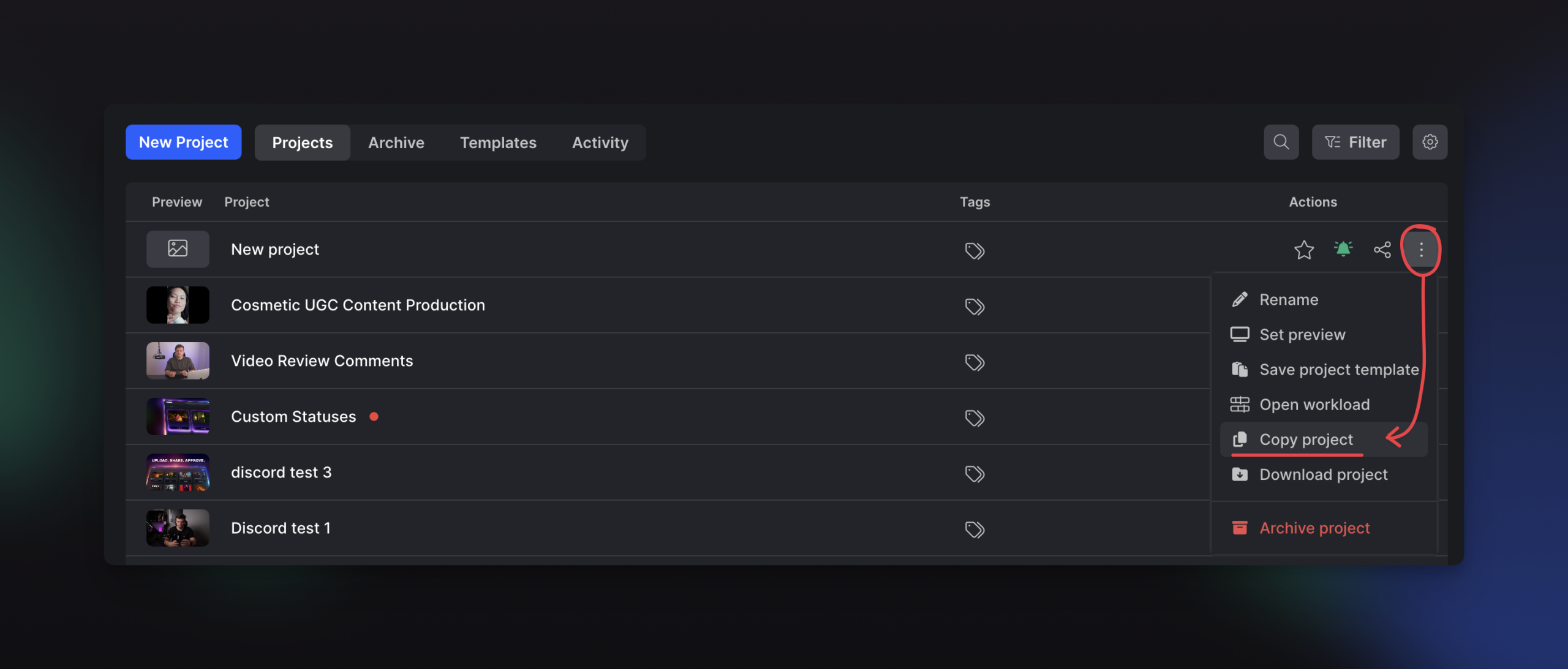
- Open the All projects menu
- Click on the Project Settings button
- Select the “Copy project” menu item
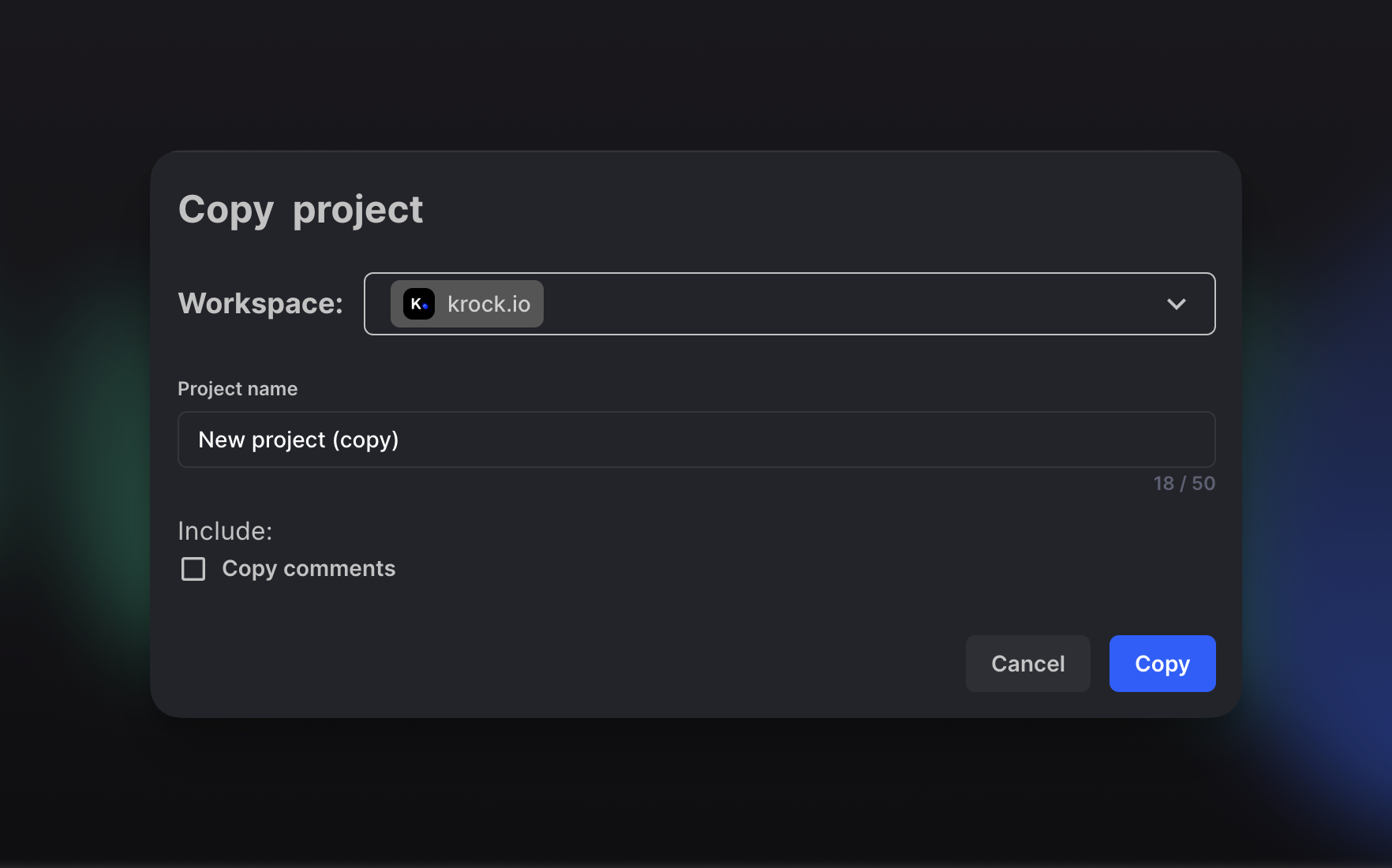
- In the floating window, select Workspace (it could remain the same Workspace) and give a new project name
Copy the Stage
When you need to make a copy of the project stage with all files within, follow these instructions:
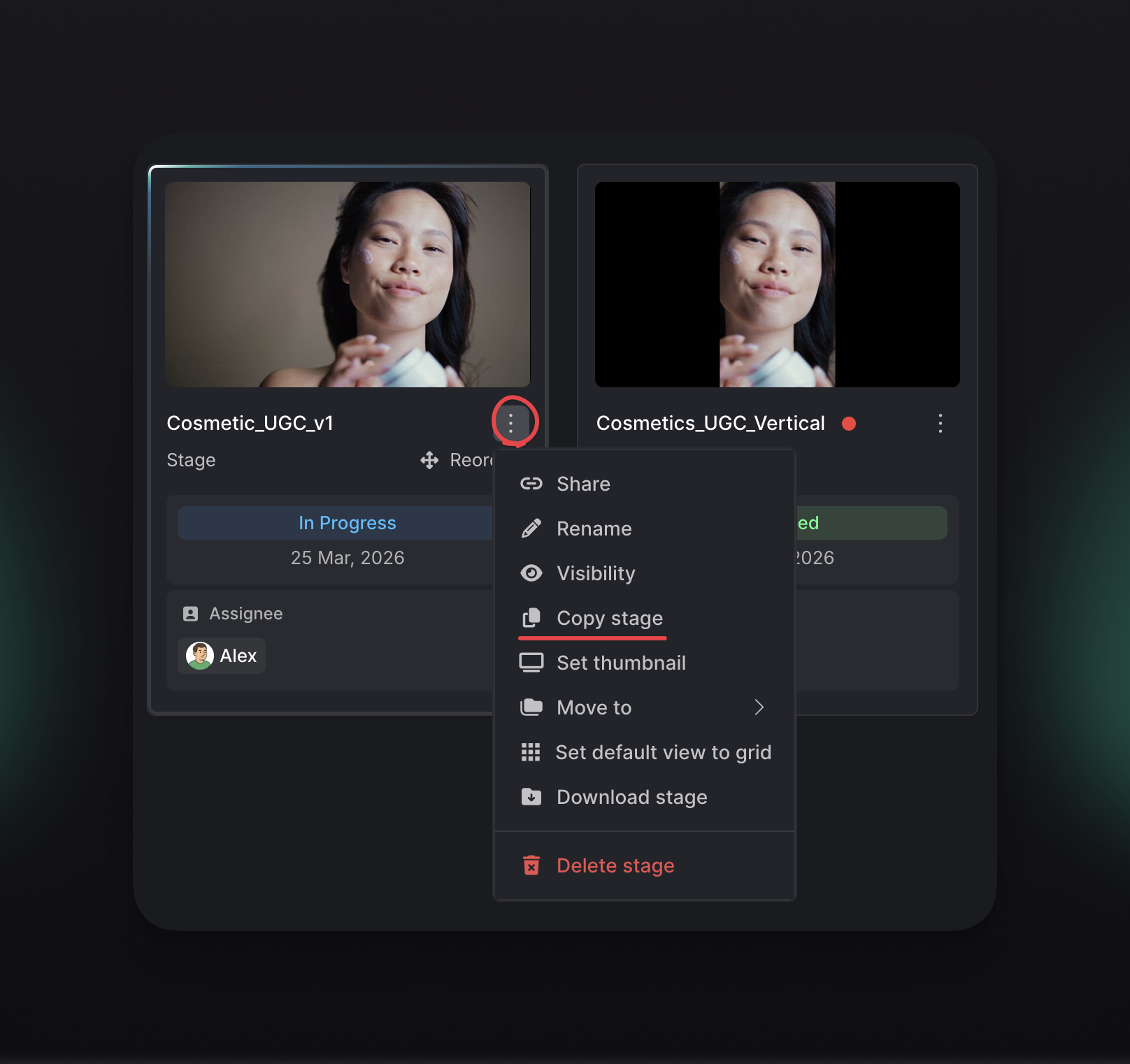
- Open a project and find the desired Stage
- Click on the Stage Settings button.
- Select the “Copy Stage” menu item
- In the floating window, select Workspace (it could remain the same Workspace)
- Select a destination project
- Give a new stage name.
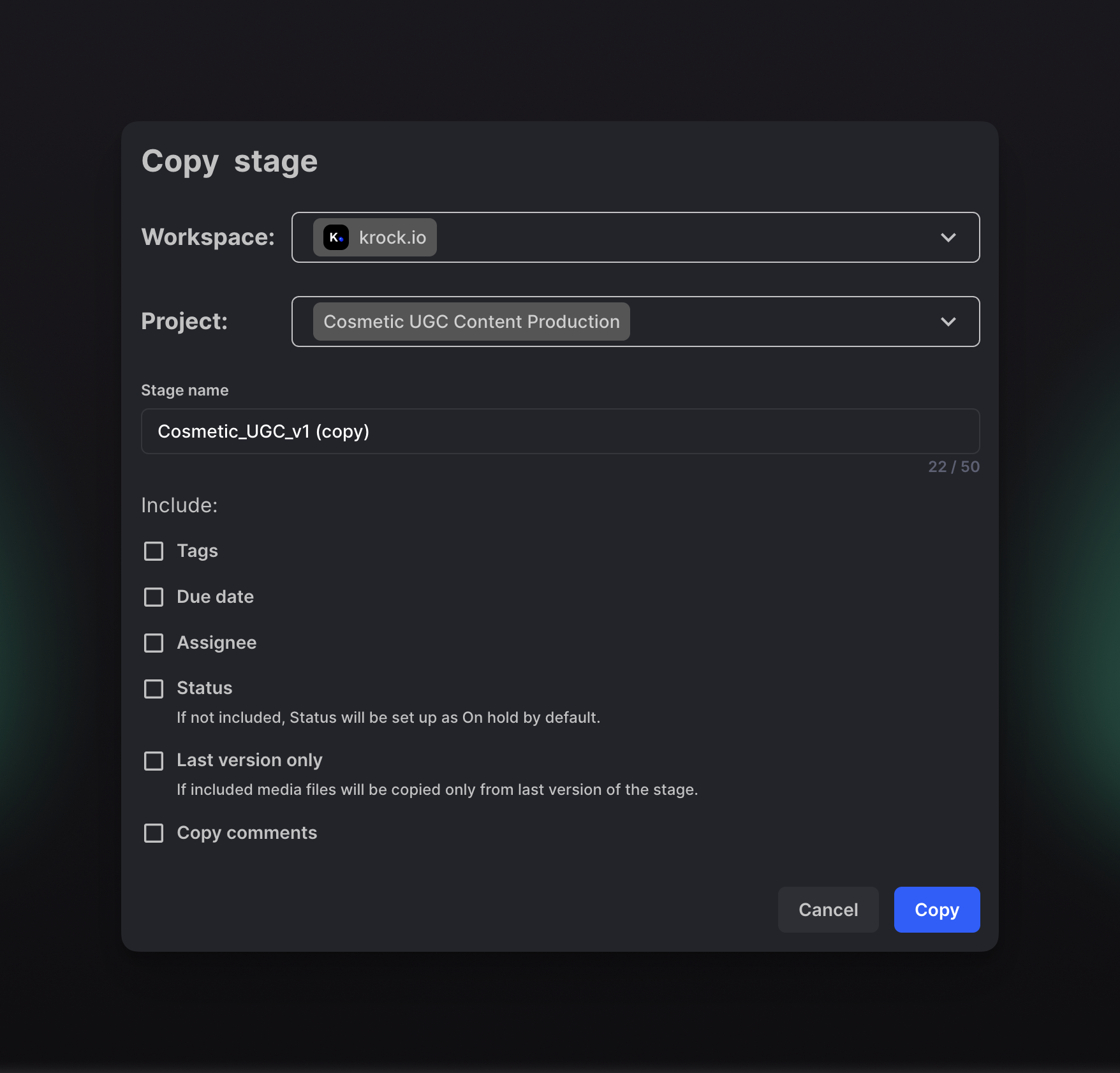
In the “Copy Stage Window,” you can find additional settings, like:
Include other project attributes in the new copy. Such as,
- Assigned tags to the Stage
- Stage Due date (deadline)
- Assignee
- Current status (if not included, the current status will be set up as “On hold” by default)
- Last version – you copy only the latest version of the current project.
If you copy the Stage to another workspace, you won’t transfer additional attributes with the Stage.
Copy the Version
To copy a version, follow these instructions:
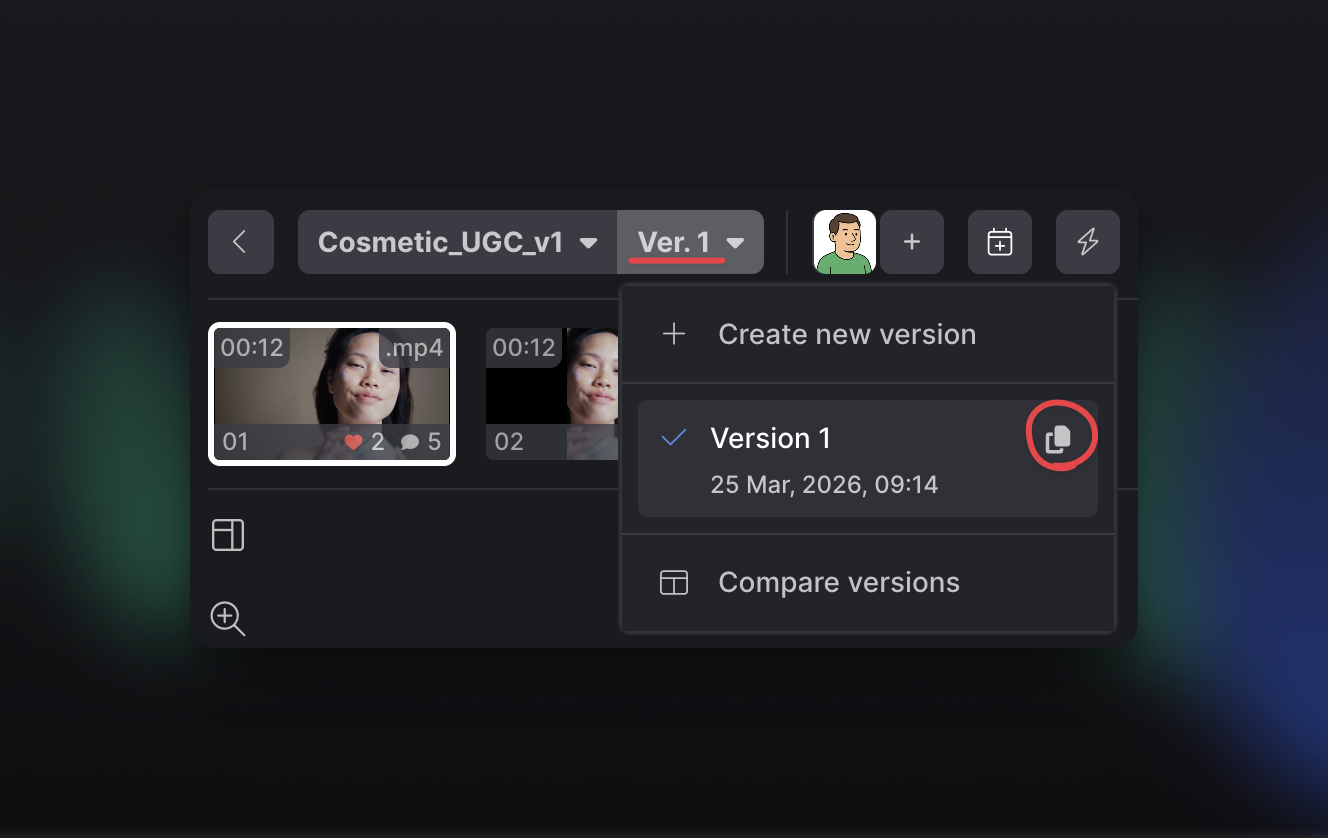
- Open the Stage and go to the versions menu
- Press the “Copy Version” button on a version item that you want to copy
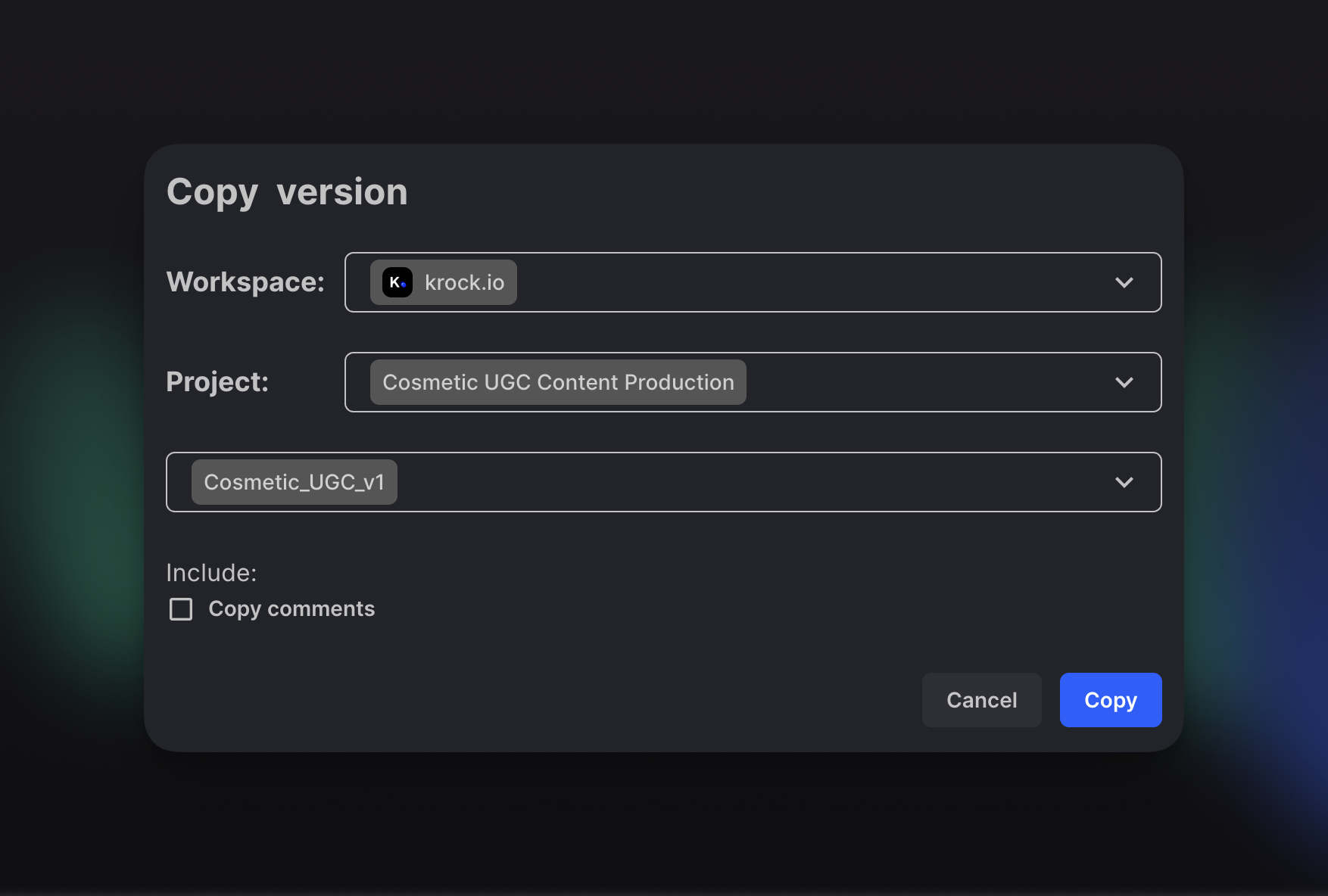
- In the floating window, select Workspace (it could remain the same Workspace)
- Select a destination project
- Pick the Stage within the selected project
Have questions? Reach out at krock.io/contact or create an in-app ticket.