Krock.io lets you download your media at several levels: a single version, a whole stage, or an entire project with everything inside it. Files come down as original-quality sources, not the compressed previews you see in the player.
This guide covers where each download lives, the options you’re asked about along the way, and what to do if some files don’t arrive.
Download a whole project
- Go to Projects.
- Hover over the project row and click the ⋮ button in the Actions column.
- Choose Download project.
- In the File Naming window, pick how files should be named and which versions to include, then click Continue.
Download a stage
- Open the project.
- Click the ⋮ button on the stage card.
- Choose Download stage.
- Pick your options in the File Naming window and click Continue.
This is the fastest way to collect everything a client or teammate uploaded to one stage — final deliverables, source files, audio, and images in a single action.
Download a single version
When you only need one specific version rather than the whole stage, download it directly. The File Naming window opens with the naming options only — you’ve already chosen the version, so there’s nothing to select there.
The File Naming window
Every project and stage download opens the same window, where you make two choices at once — how files are named, and which versions to include — before clicking Continue.
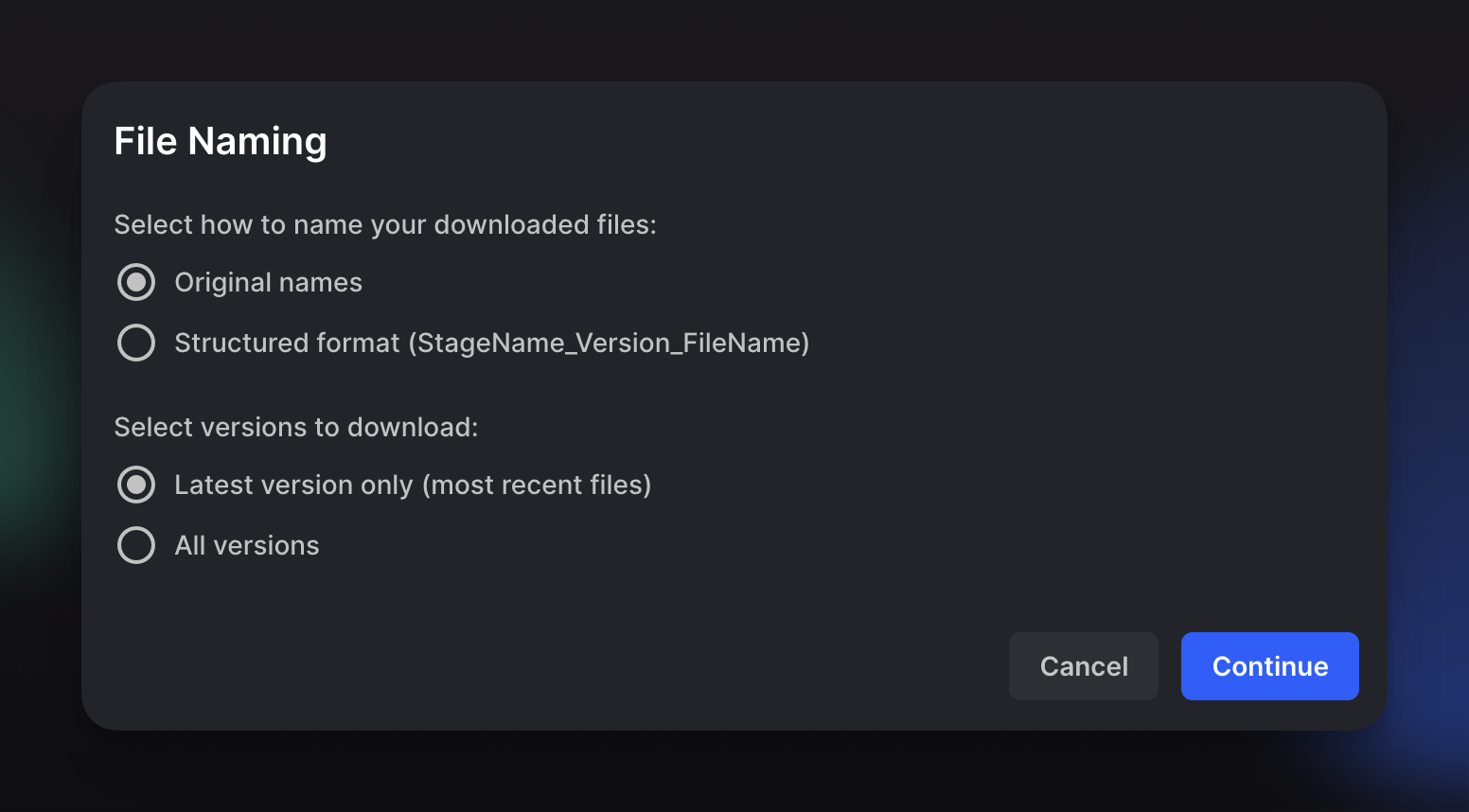
Select how to name your downloaded files. Original names keeps the filenames exactly as they were uploaded, which is what you want if your team already follows its own naming convention. Structured format renames each file as StageName_Version_FileName, so when you’re pulling files from several stages or versions at once, the name itself tells you where each file came from and nothing gets mixed up in your Downloads folder.
Select versions to download. Latest version only gives you the most recent file from each version stack — the current state of the work, and the right choice in most cases. All versions downloads the full revision history, which is useful when you’re archiving a finished project or handing everything over to a client. On a large project this can mean a lot of files, so expect it to take longer and use more disk space.
If some files are missing after downloading
Downloads are delivered as individual files rather than one archive, and browsers are cautious about a site that starts several downloads in a row — after the first few, the rest get blocked silently. On a stage with 15 or more files, that usually shows up as 1 to 5 files quietly missing, with a different number missing each time you try.
Nothing is lost in Krock.io; the files are still there. Allow Krock.io to download multiple files, and they’ll all come through:
- Open platform.krock.io and log in.
- Click the icon on the left side of the address bar, next to the padlock.
- Choose Site settings.
- Scroll to Automatic downloads and set it to Allow.
- Go back to Krock.io, reload the page, and start the download again.
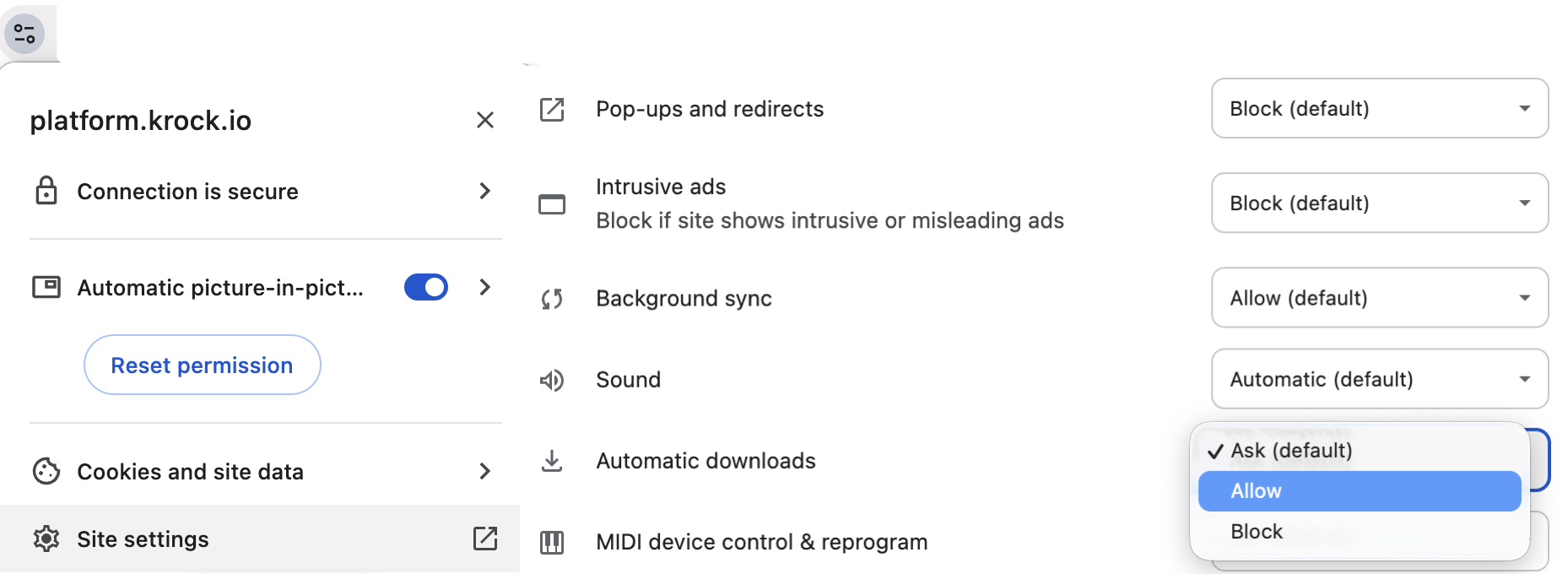
The setting is remembered, so this is a one-time step per browser. Edge, Brave, Opera, and Arc use the same Site settings → Automatic downloads option, reached the same way from the address bar. In other browsers, watch for a prompt asking whether Krock.io may download multiple files and choose Allow.
Once the download finishes, compare the number of files in the stage with what landed in your folder. If a single file is still missing, you can download it on its own from the stage.
Still having trouble?
Write to support@krock.io with a link to the project or stage and the names of the files that didn’t arrive, and we’ll check it from our side.