You can set a file’s thumbnail straight from the video itself. Instead of choosing from a fixed set of preview images, you scrub through the actual video file to any moment you like and set that as the thumbnail.
Set the thumbnail
- Open the video file you want to pick a thumbnail from.
- Scrub or play the video to the exact moment in the file you want as the thumbnail. For frame-accurate control, use the “.” and “,” keys to step forward and back one frame at a time — see How to View a Video Frame by Frame for all the player controls and hotkeys.
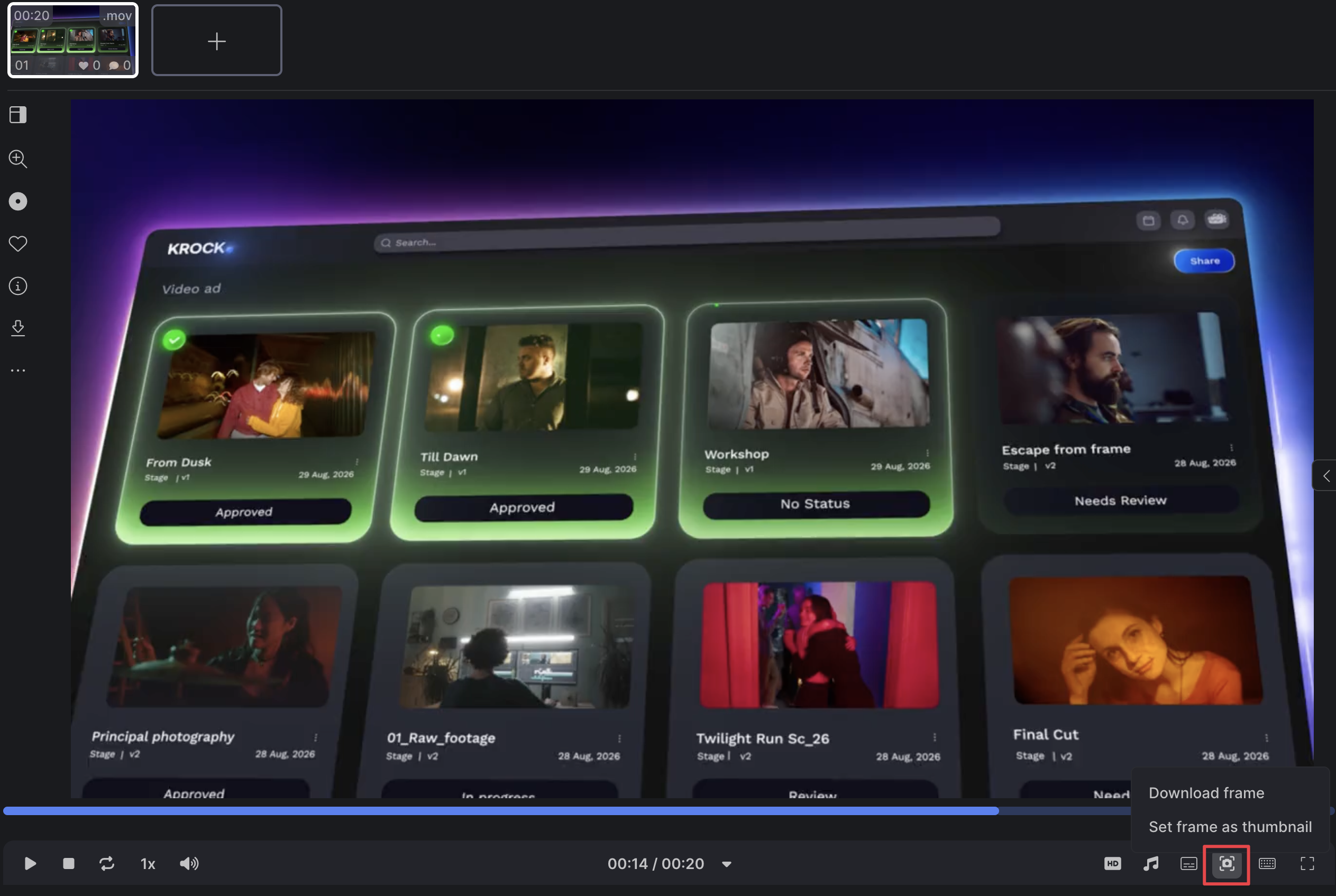
- In the player’s bottom control bar, click the camera / screenshot icon.
- Choose “Set frame as thumbnail.”
That moment from your video is now the thumbnail — it’s used for both the video file and its stage.
Save the frame as an image
The same menu also has a “Download frame” option. Use it if you want to save the current moment as an image file, separately from setting it as the thumbnail.
Need a hand with this? Reach out at support@krock.io, and we’ll be glad to help.