This guide explains how project and stage notifications work and how managers and team members can control what they receive.
How Notifications Work
Two key factors determine whether you receive notifications:
- Profile Notification Settings
https://platform.krock.io/profile/notifications - Project Subscription
Each user can choose to subscribe to a project or not, and configure which types of notifications they want to receive (via web, email, or Slack) in their profile settings.
Profile Notification Settings
Users can select which types of updates to be notified about, and through which channel:
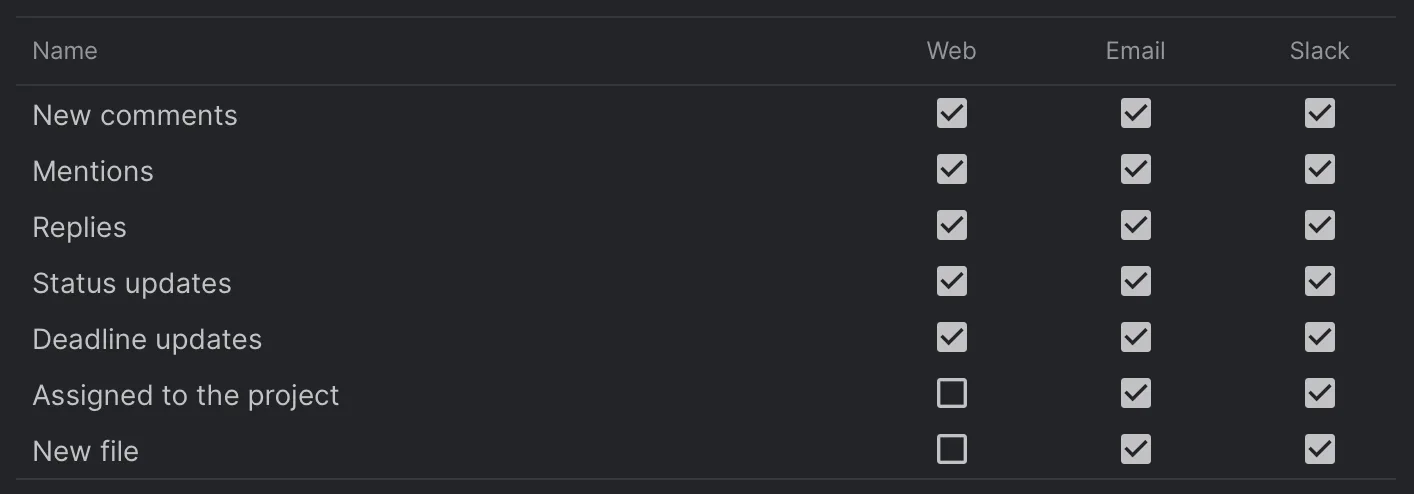
You can update these at any time in your Profile Settings > Notifications.
Project Subscription
To subscribe to a project, click this button either from the projects view or from inside the project.

✅ Subscribed
You will receive all selected notification types, even if you’re not assigned to a specific Stage.
❌ Not Subscribed
You will receive notifications only from the Stages you’re assigned to.
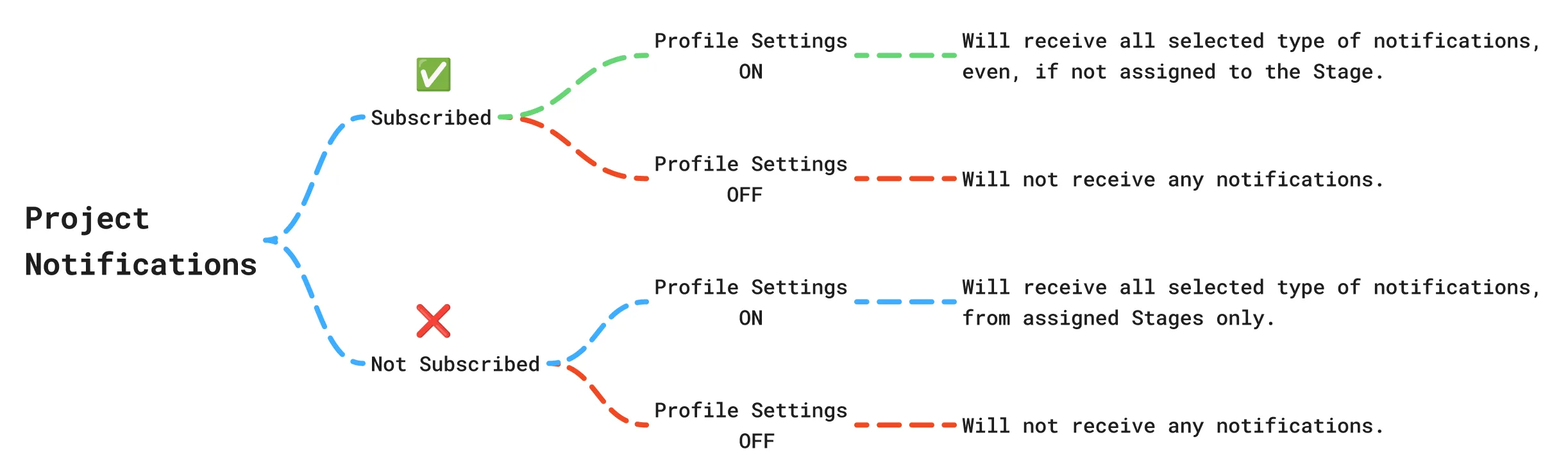
⚠️ If your profile settings are OFF, you won’t receive any notifications.
⚠️ If you’re mentioned in a stage you’re not assigned to and not subscribed to the project, you’ll still receive a notification, as long as mention notifications are enabled in your profile.
In-App Notification Indicator (the red dot)
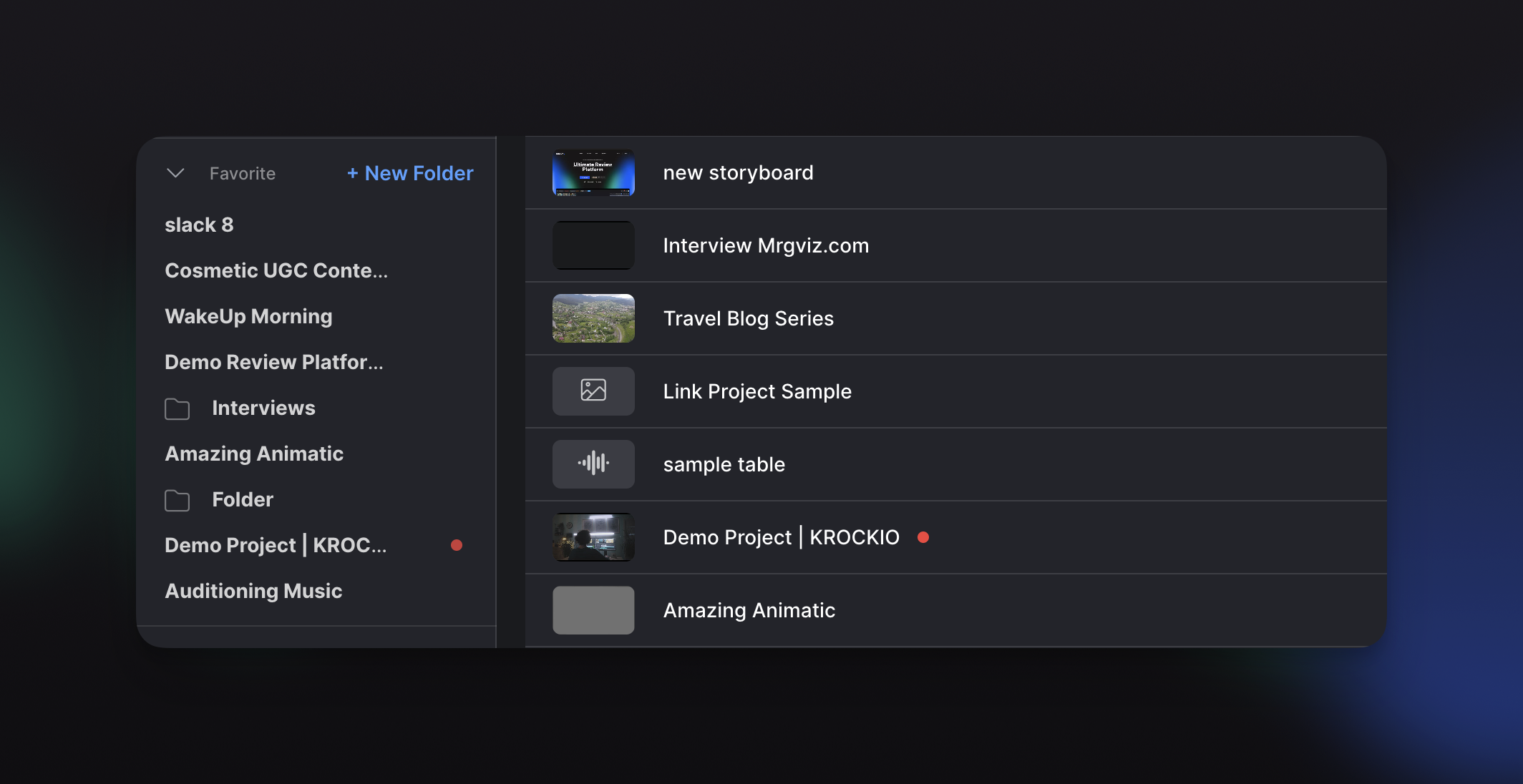
Alongside email and Slack, Krock.io shows a small red dot right in the interface so you can spot new activity at a glance.
Where it appears
- Next to a project — in both the projects list and your Favorites sidebar.
- Next to a stage card on the project board.
What it means
The red dot appears when there’s an unread notification addressed to you for that project or stage — for example, a changed due date, a new comment, or another update on a stage you’re assigned to. It follows the same rules described above: you see it for the activity you’d be notified about based on your profile settings, project subscription, stage assignments, and mentions.
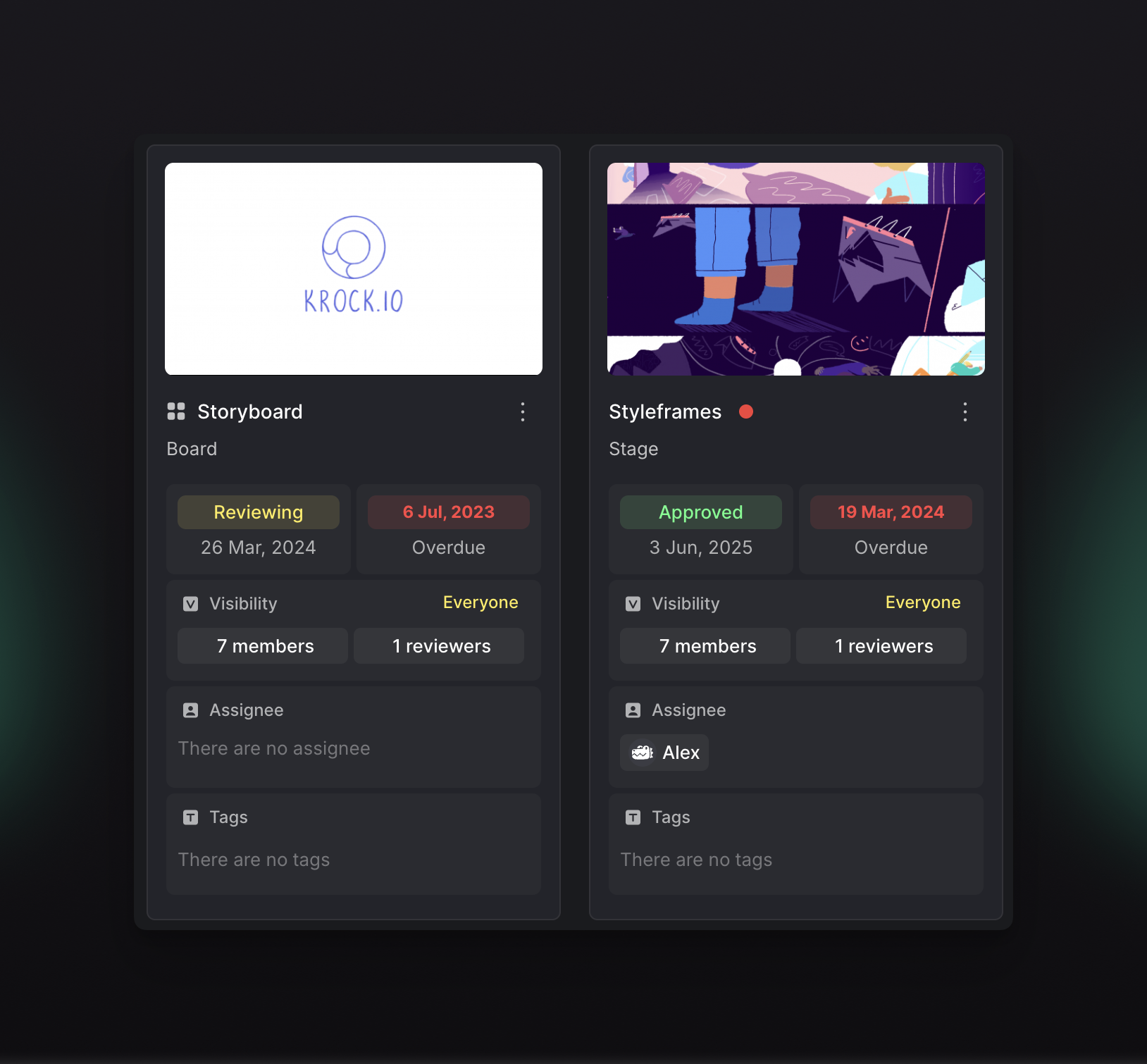
No counter — just a dot
The indicator is intentionally a simple dot with no number. It tells you there’s something new to look at, not how many items are waiting.
It clears automatically
As soon as you open the project or stage, the red dot disappears.
Email Notification Frequency
To control how often you receive email notifications, go to Profile → Notifications and use the Email Notification Frequency dropdown. You can choose between immediately, 15 mins, 1 hour, 3 hours, or 1 day — so you can stay informed at a cadence that works for you without inbox overload.
Want to receive project updates in your favorite tool?
- Check out our Slack Integration Guide to learn how to connect your Krock.io workspace and get real-time notifications where your team already collaborates.
- Using a different app? Check out our Webhooks Guide to set up real-time notifications in any tool or platform your team uses.